
When an assignment has been given, submit it as a file or online text.
Submitting an Assignment
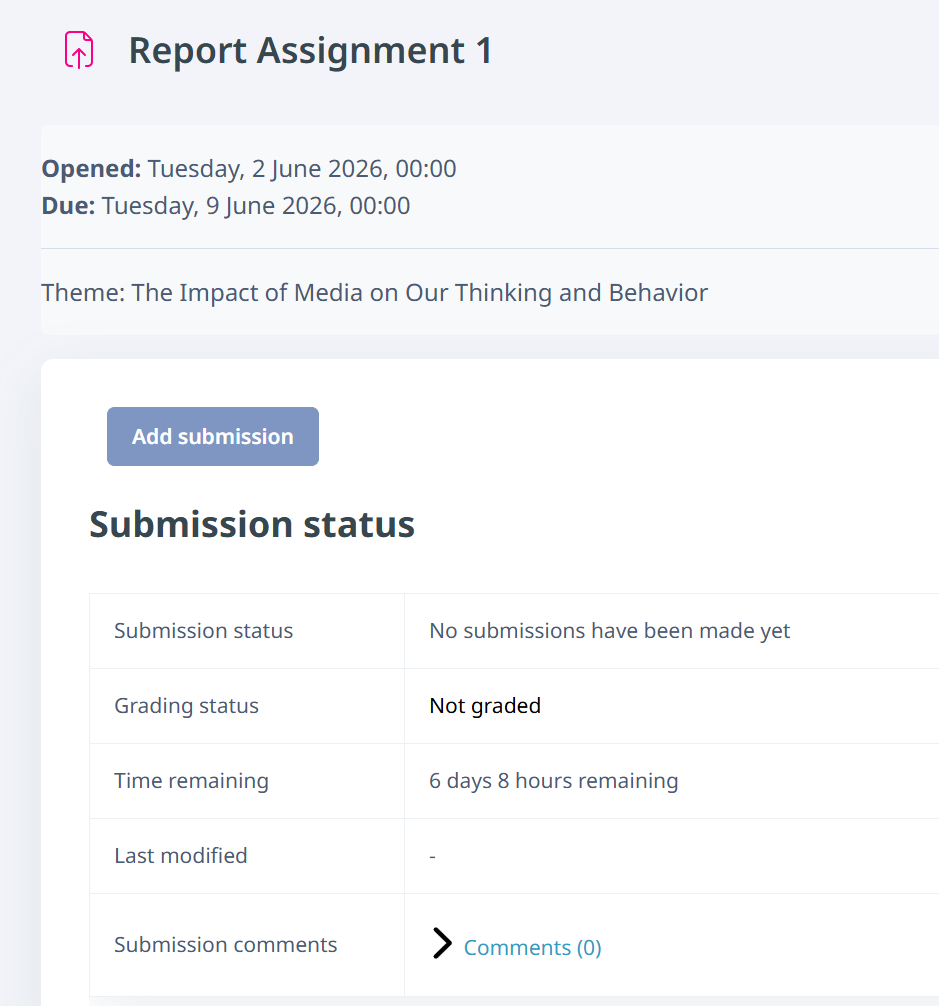
Click the assignment title on the course page to display the submission status.
To submit the assignment, click "Add submission".
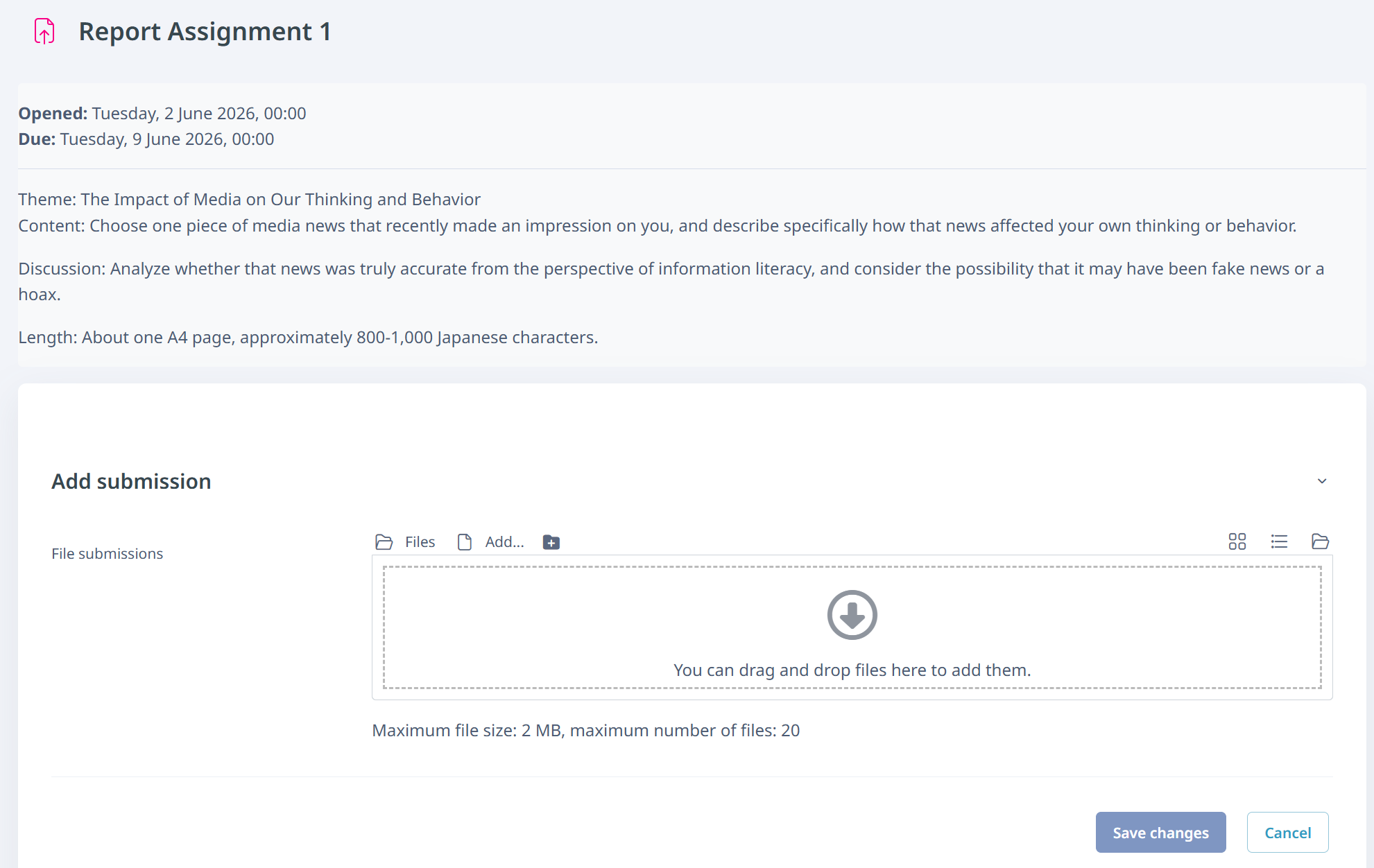
The assignment submission screen will be displayed. Follow the on-screen instructions to enter text or upload files.
Click "Save changes" at the bottom of the screen to submit your work.
For File Submissions
For file submissions, drag and drop the file into the File submissions box.
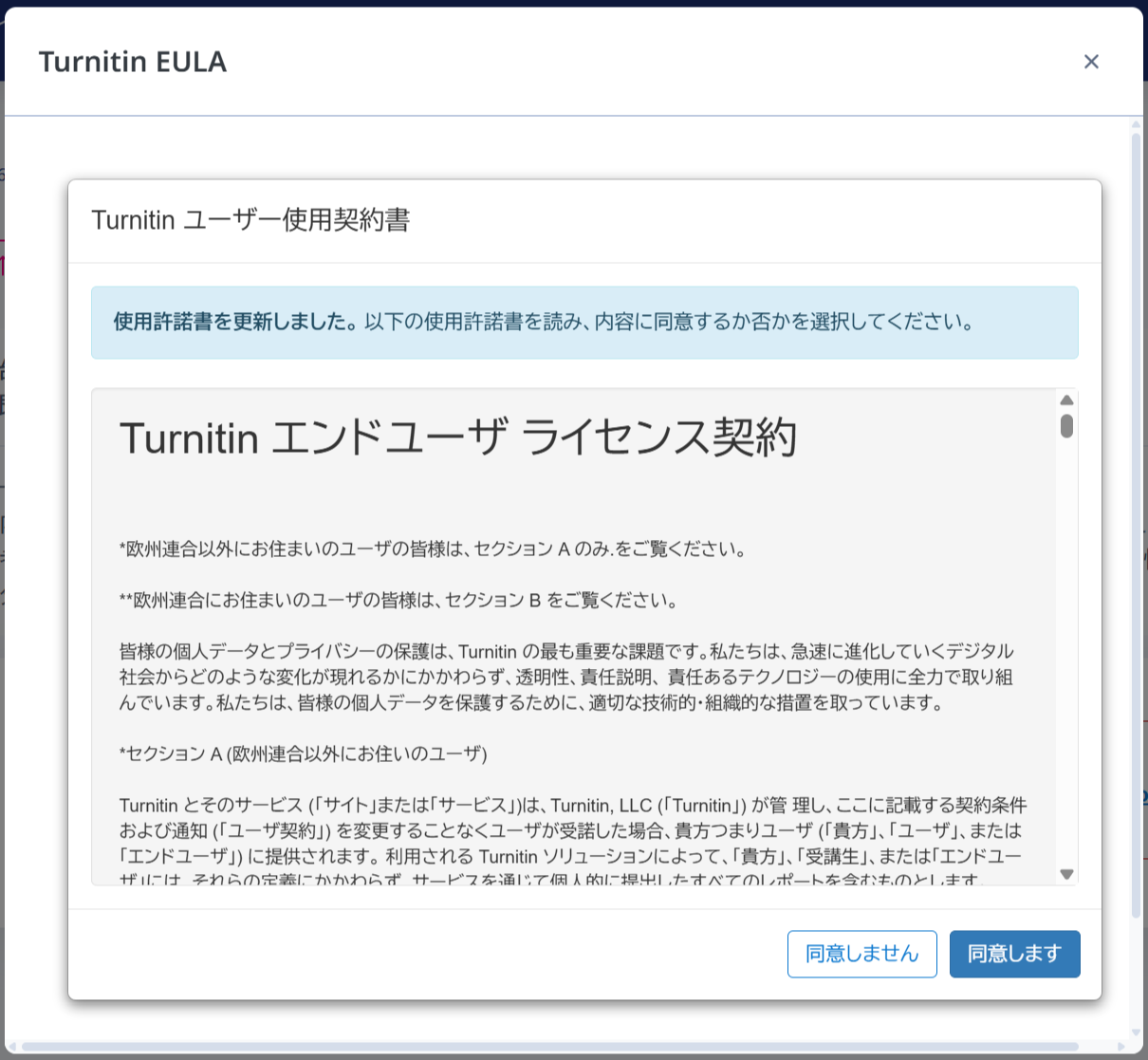
For assignments with Turnitin (plagiarism check) enabled, if you have not previously agreed to the Turnitin End User License Agreement, a consent screen will be displayed.

Turnitin (plagiarism check) is used when the teacher has determined that it is necessary to ensure learning outcomes and enable appropriate evaluation. Please review the content and agree to it.
For Online Text Submissions
For online text submissions, enter your text directly in the text area.
For online text submissions, if your internet connection is unstable and submission fails, your content may be lost. We recommend preparing and saving the text on your local computer in advance, then copying and pasting it for submission.
Checking Submission Status
After submitting an assignment, the submission status screen is displayed and the status will show "Submitted for grading".
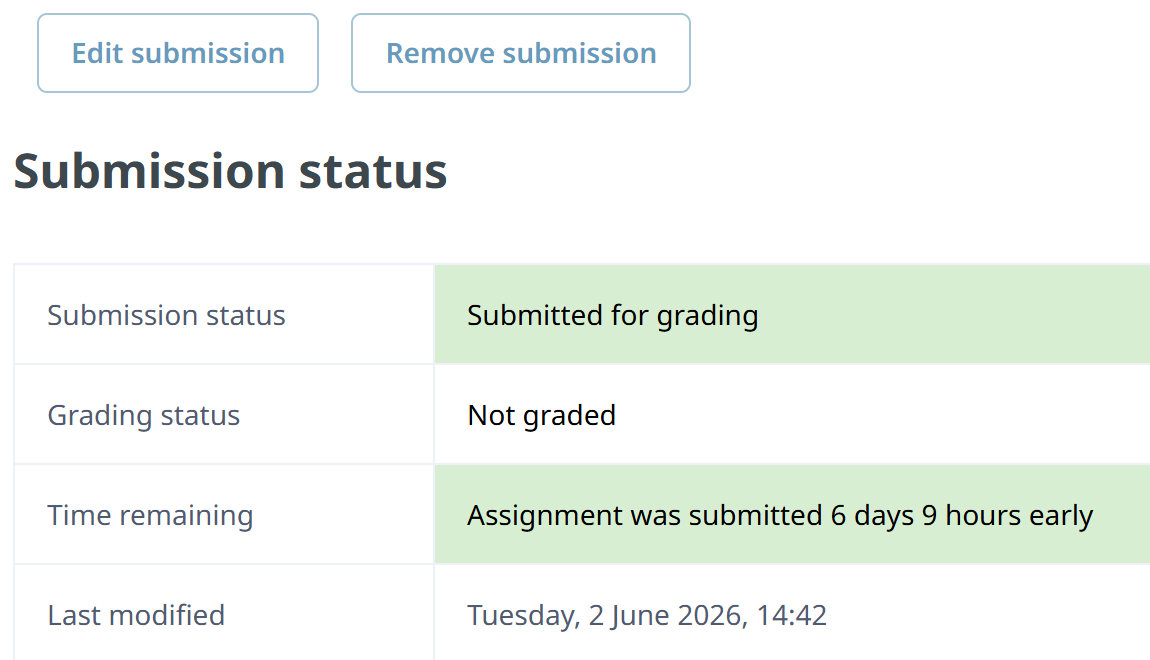
If permitted by the settings, you can edit your submission, including resubmitting, as many times as needed before the deadline by following the steps below.
- Click "Edit submission" on the submission status screen
- To delete the submitted file and submit it again, click the icon for the submitted file, click "Delete submission" in the displayed submenu window, and then submit a new file