
By posting to the Announcements forum provided by default in each course, you can send notices to all students participating in the course.
How to Post
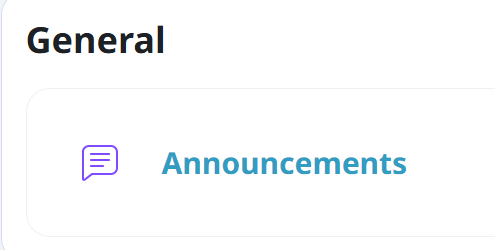
Click Announcements in the course.
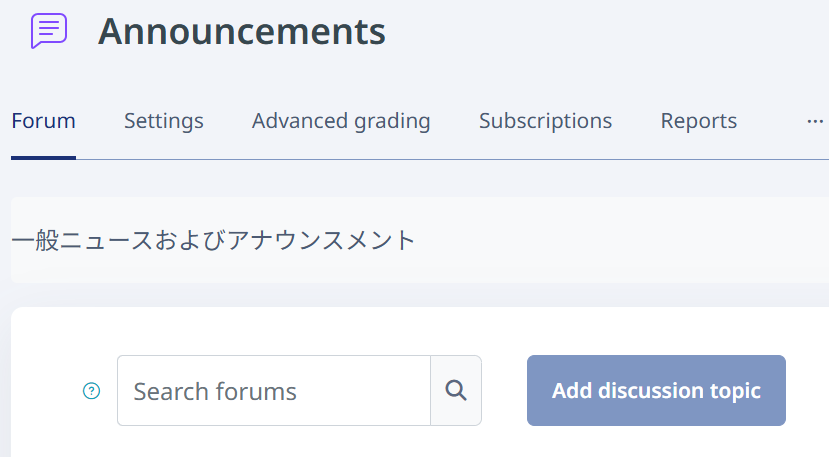
Click "Add discussion topic".
Enter the subject and message, then click "Post to forum".
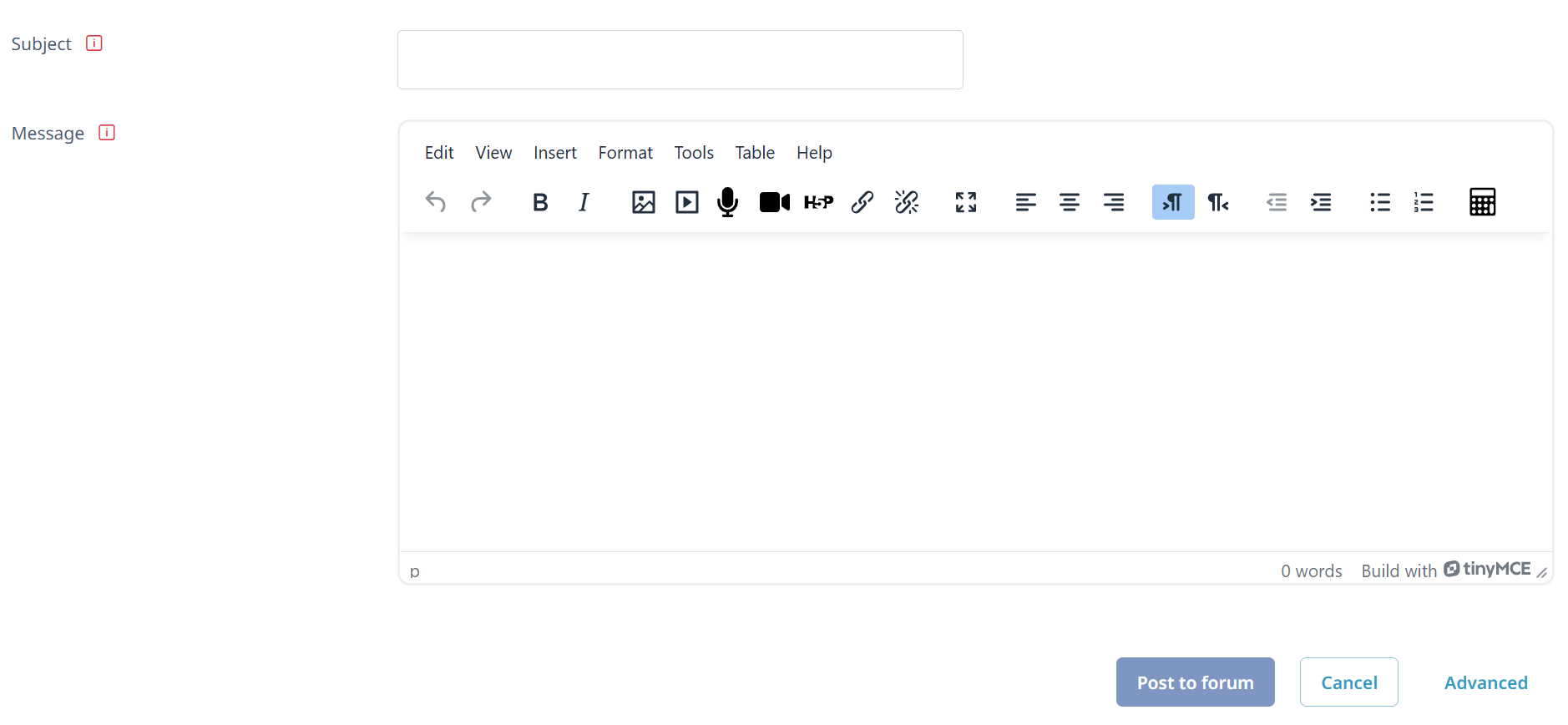
To configure advanced settings for a post, click "Advanced" before posting to display additional settings.
Messages posted to the forum are sent by email or similar notification to students and faculty/staff enrolled in the course after the five-minute editing time has elapsed. To send the notification immediately after posting, enable "Send forum post notifications with no editing-time delay".
To set a display period for the post, set the dates and times under Display period.
If groups have been created in the course, you can also notify only a specific group. In that case, select the target group when creating a new post, then click "Add discussion topic".
Important Notes on Using Announcements
- Even if a student replies to the automatic notification email sent for an Announcement, the reply will not be delivered to the teacher.
- Do not delete the Announcements item provided in the course.
- Do not change the name of the Announcements item provided in the course.