Users assigned the Teacher role in a course can edit the course.
Toggling Edit Mode
To edit a course, such as adding activities or resources, you need to enable Edit mode. To enable Edit mode, access the course you want to edit and click the toggle switch at the top right of the screen.
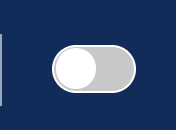
When the toggle switch is gray, Edit mode is disabled. When it is blue, Edit mode is enabled.
When Edit mode is enabled, buttons such as "Add an activity or resource" and "Add section" will appear.
Adding a Section
A section, or topic section, is a feature that groups items such as activities and resources. You can set availability restrictions for each section and show or hide sections. The course menu on the left side of the course screen displays a table of contents for the items, grouped by section.
A course must have at least one section, and all activities and resources must be placed in one of the sections.
To create a new section, click "Add section". To change a section name, move the cursor over the section name and click the pencil icon displayed on the right.
Adding Activities and Resources
Activities and resources are features that can be placed in a course.
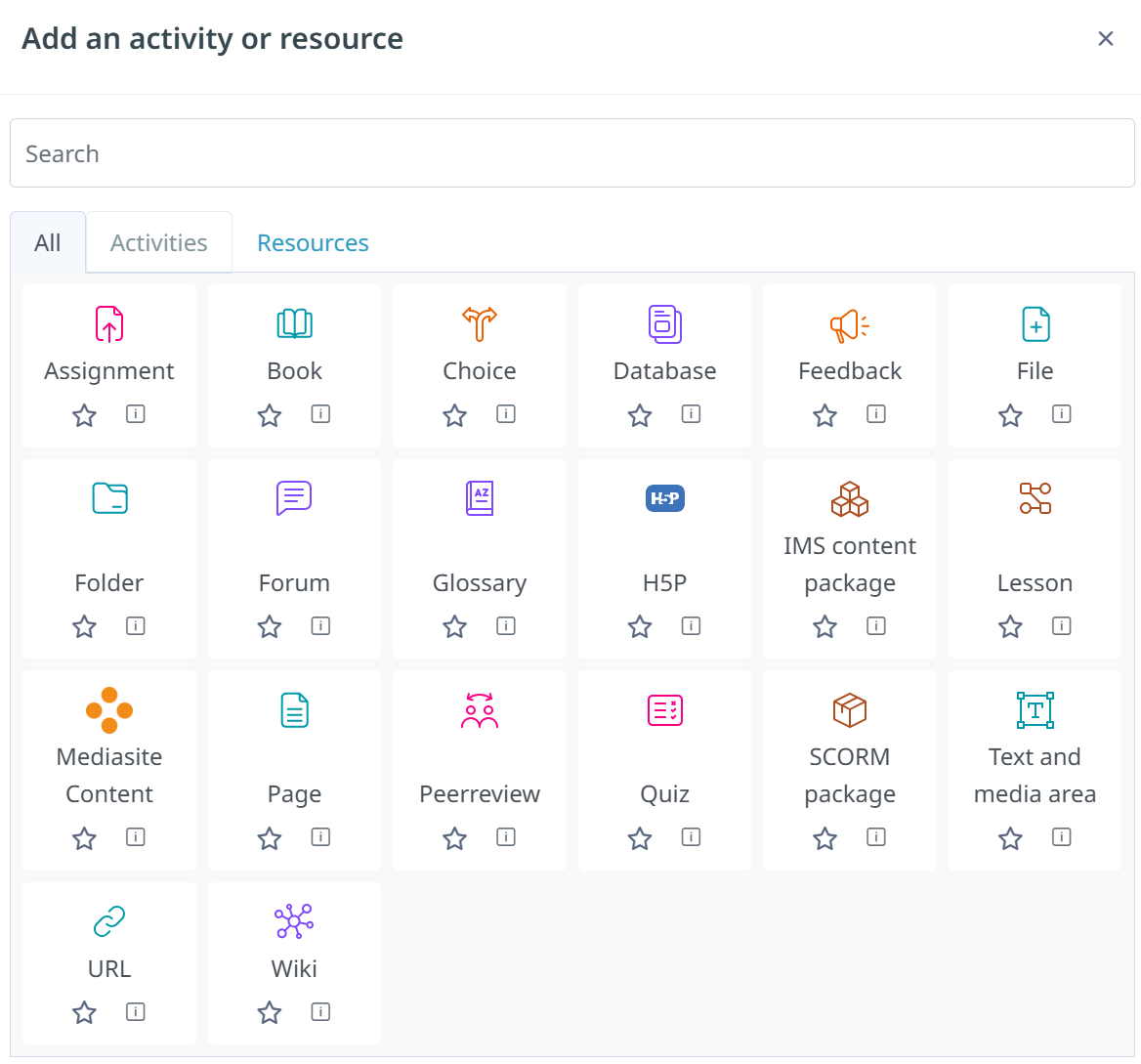
To add a new activity or resource, click the "Add an activity or resource" button in the section where you want to place it, then select the desired activity or resource from the displayed dialog, called the activity chooser. After configuring the settings for that activity or resource, it will be added to the course as an item.