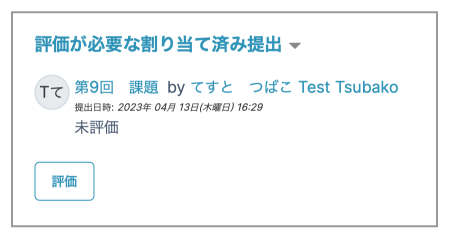
In the Assessment phase, students can assess assignments allocated to them. The screen shown below is displayed; click "Assess" to assess.
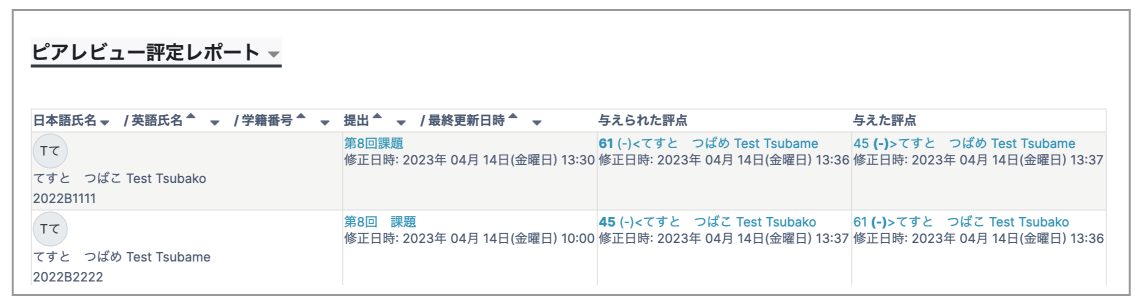
When assessment is finished, grades appear in the Peer Review grading report.
There are no settings for teachers in this phase. However, you can take the following actions as needed, such as correcting inappropriate assessments.
Inappropriate Assessments
- If an assessor does not give an appropriate grade and a submitter receives an unfairly low assessment
- If a student gives a grade that is extremely low (or high) compared with other students, and that student's grade for assessment becomes low
Click a grade to open its settings page.
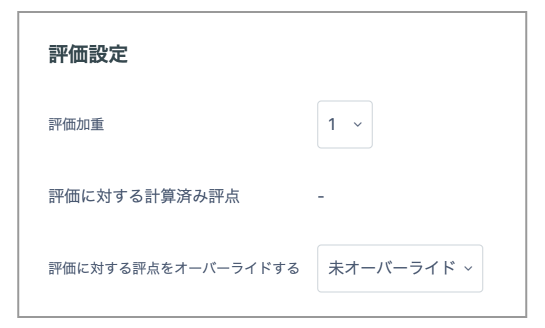
Click the grade that you want to exclude and set "Grading weight" to zero. The excluded assessor's "Grade for assessment" also becomes 0. You can also manually change (override) "Grade for assessment".
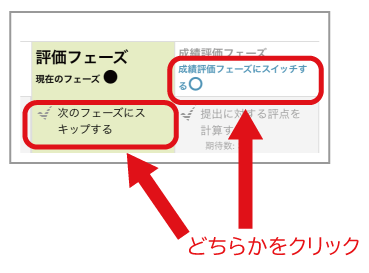
When assessment is complete, click "Skip to the next phase" or "Switch to the grading evaluation phase".