
- In the course section, click "Add an activity or resource".
- Select "Assignment" in the menu window, then click "Add".
- Enter the assignment name and description.
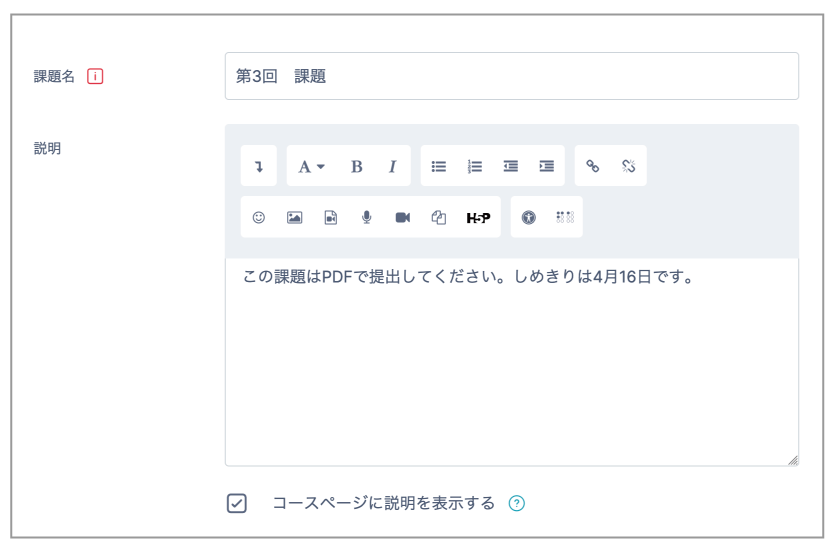
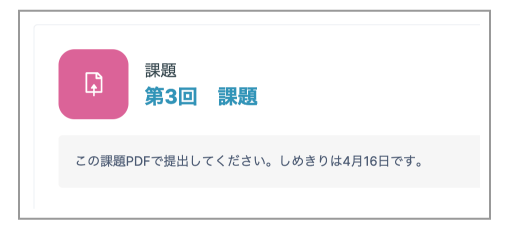
- Select "Display description on course page" to display the description on the course page.
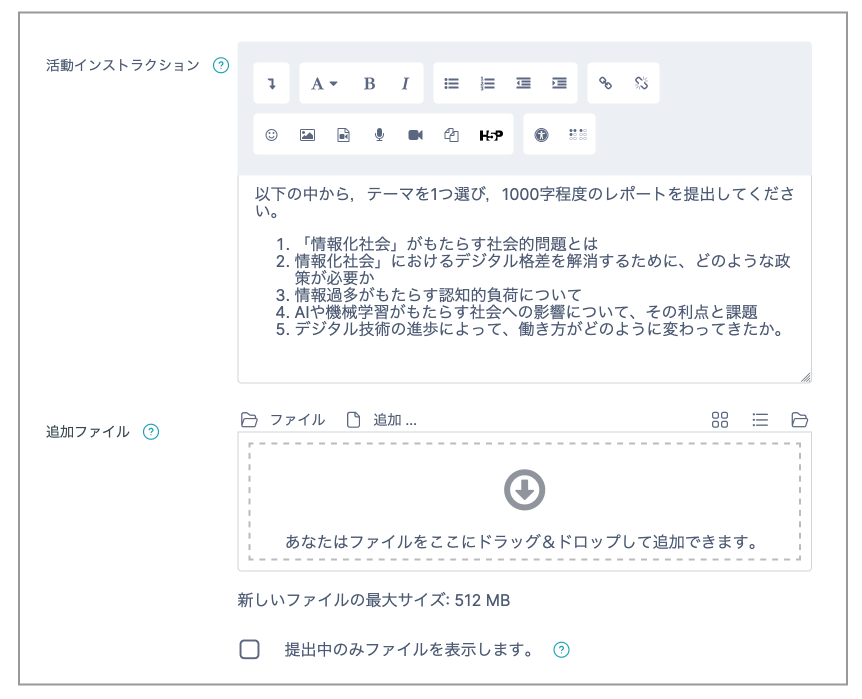
- Enter the assignment content under "Activity instructions". Content entered here is displayed on the Assignment submission page.
- If you want to distribute files with the assignment, drag and drop them under "Additional files".
- Students will see content entered under "Description" and "Activity instructions" on the Assignment submission page.
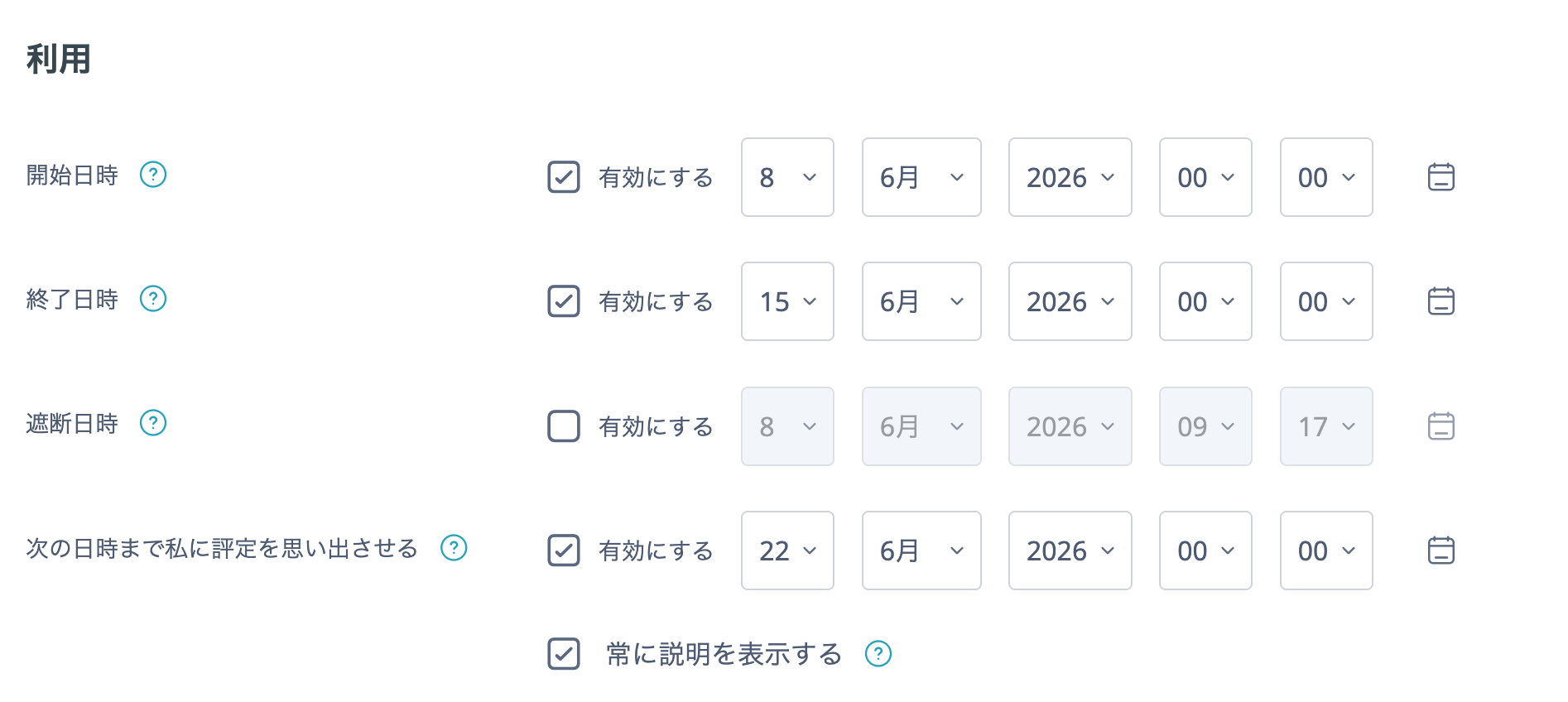
Availability (submission period)
Set the period during which assignment submissions are accepted under "Availability".
The date whose "Enable" option is set to "Yes" takes effect.
- Allow submissions from: the date and time when assignment submissions open.
- Due date: the assignment due date (students can still submit after this time).
- Cut-off date: the date and time after which no submissions are accepted.
- Remind me to grade by: the date and time after the due date when teachers are reminded to grade the assignment.
*Note: Make sure the Due date and Cut-off date set here do not conflict with the deadline date and time given to students.
Submission types
- Online text: students enter text directly in the web page.
- File submissions: students upload files.
- Accepted file types: In the menu window displayed by clicking "Choose", you can specify the formats that students can upload.
Feedback types
- Feedback comments: enter comments directly in the LMS/MORE grading page.
- Offline grading worksheet: download a CSV grading worksheet, enter grades and comments, then upload it.
- Feedback files: add comments to a file, upload it, and return it to students.
_Note_
* All feedback types are enabled by default.
* Feedback can be provided by any one of these methods.
* Unless there is a particular reason, there is no need to disable any of them.
Submission settings
_Note_
"Require students to click the submit button" is "No" by default
- Students drag and drop assignment files, then click "Submit assignment".
- The submission status becomes Submitted, and students can edit it as many times as needed before the due date.
If you set this to "Yes", students must click buttons three times.
Students must do the following.
- Drag and drop an assignment file, then click "Submit assignment".
- → The submission becomes a draft (it can be edited any number of times. Students see "Draft (not submitted)" and it remains a draft even if the due date passes).
- → Click "Submit assignment".
- → Click "Continue".
- → The submission status becomes Submitted and can no longer be edited.
Students may click the submit button only once, fail to check their work, and leave the submission as a draft until the due date. If you change the setting to "Yes", make sure students are fully informed of this point.
When to Release Grades
Set "Use marking workflow" under "Grade" as follows.
- To release grades at your preferred time: select "Yes" (the default is "Yes").
- To release grades to students at the same time as entering grades or uploading an offline grading worksheet: select "No".
- Click "Save and return to course" at the bottom of the page.