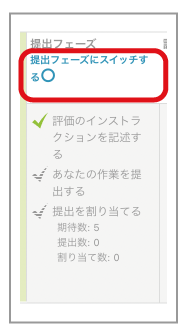
This section explains the Setup phase.
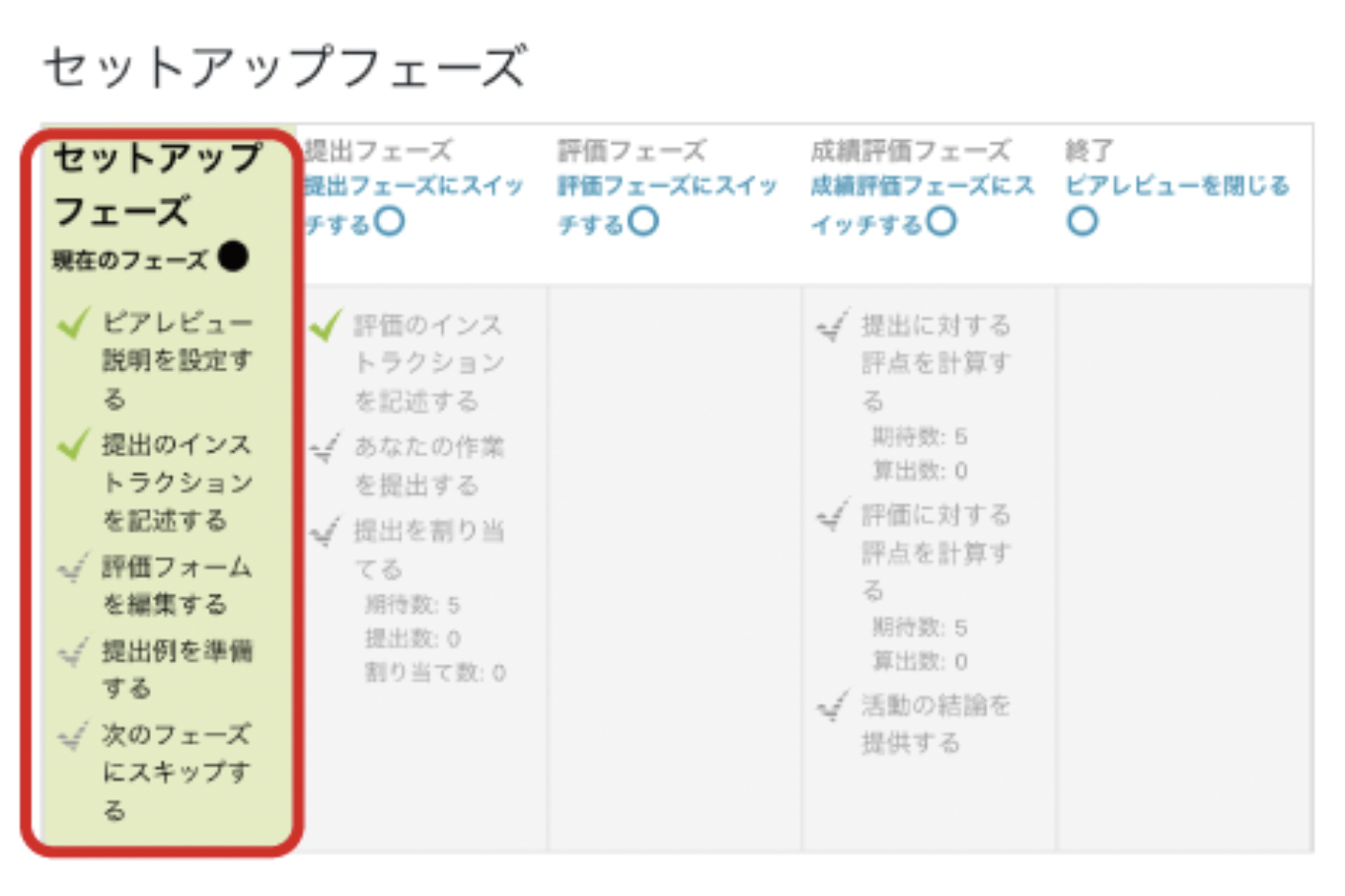
- Select "Peer Review" from "Add an activity or resource".
- Enter a name for the Peer Review activity.
Also enter a description.
Grading settings
- Accumulative grading: includes comments and grades.
- Comments: includes comments but no grades.
- Number of errors: includes comments and yes/no assessments.
- Rubric: provides level-based assessments using a rubric.
This guide explains how to use Accumulative grading.
Submission settings
Enter the assignment description and instructions in "Submission instructions".
These are displayed to students when they submit their work during the Submission phase.
Configure other settings as needed.
Assessment settings
Enter instructions on how to assess other students in "Assessment instructions".
These are displayed to students during the Assessment phase.
If self-assessment is also required, select "Use self-assessment".
Reviewer feedback settings
Configure comment feedback for students when they assess other students.
Under "Overall feedback mode", select [Disabled], [Enabled and optional], or [Enabled and required].
To allow feedback attachments, set "Maximum number of overall feedback attachments".
Under "Conclusion", the teacher can set comment feedback to show to all course participants at the end of the Grading evaluation phase.
Example submissions
Decide whether to use example submissions.
If enabled, students can practise assessment, and it does not count toward their grades.
If "Use examples" is selected, set an example separately under "Add example submission".
Details are explained later in "Adding Example Submissions".
Availability
Set "Allow submissions from", "Due date", "Open for assessment from", and "Assessment deadline".
When you set a date and time, be sure to select "Yes".
- Click "Save and display".
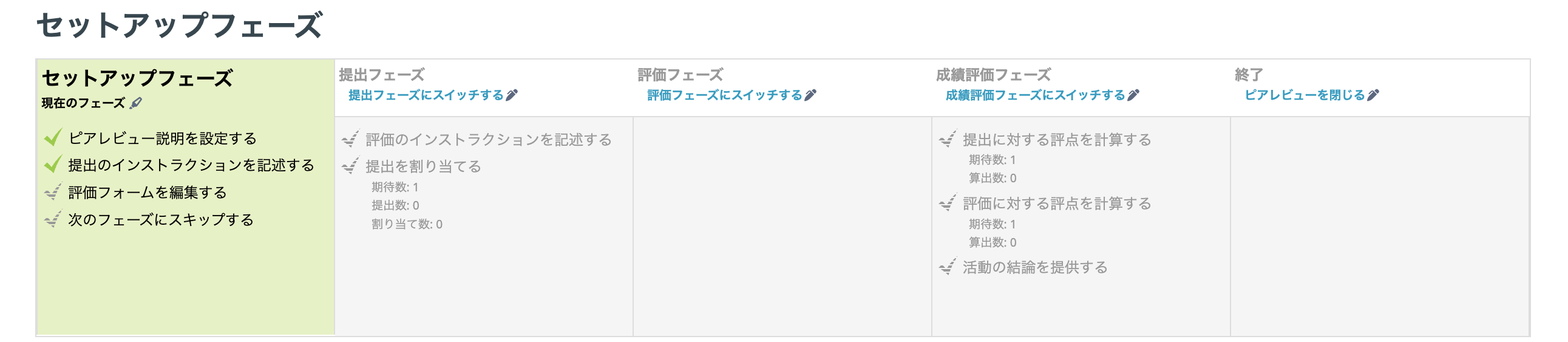
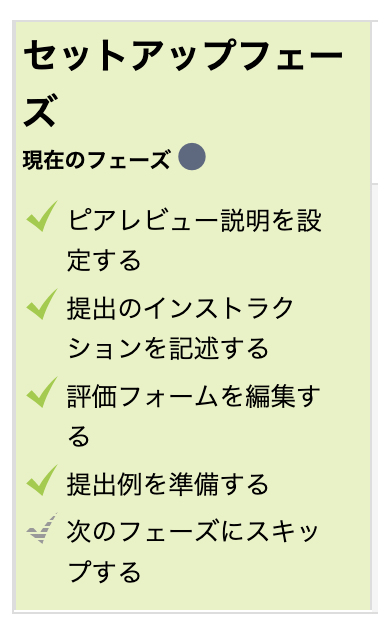
The first two items will then have green check marks.
This means the settings are complete.
Editing the Assessment Form
- In the table in the figure above, click "Edit assessment form".
An "aspect" is an assessment criterion.
- Enter an assessment criterion in the "Description" field.
Example: Is the research question clear? Is the structure sound? Does it describe a solution to the issue?
- In the "Grade" field, enter the maximum grade for that aspect.
_Note_
To delete an aspect that has already been configured, delete all content in the description for that aspect. To review the settings, click "Save and preview".
If the setting does not disappear, it may be because HTML tags remain.
Select </> in the description editor to switch to HTML view, then delete all content remaining in the input form.
Click "Save and preview" to check it.
If everything is correct, return to the edit page and click "Save and close".
Adding Example Submissions
If "Use examples" is selected, under "Example submissions", click "Add example submission".
Enter a title.
Upload an example submission, such as a PDF file.
To show students an example assessment, click "Continue".
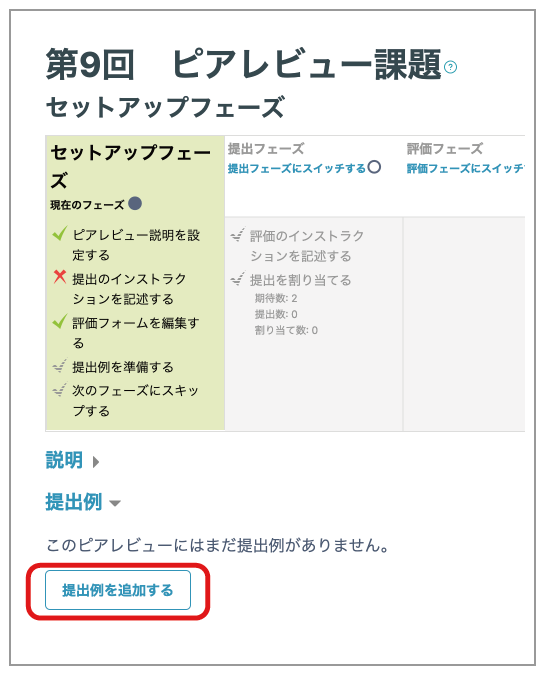
- Enter grades and comments for each aspect.
- Click "Save and close".
- Check each section, and when all required items are green, click "Switch to the submission phase". Students can submit assignments after the phase changes.
Students can now submit assignments.