
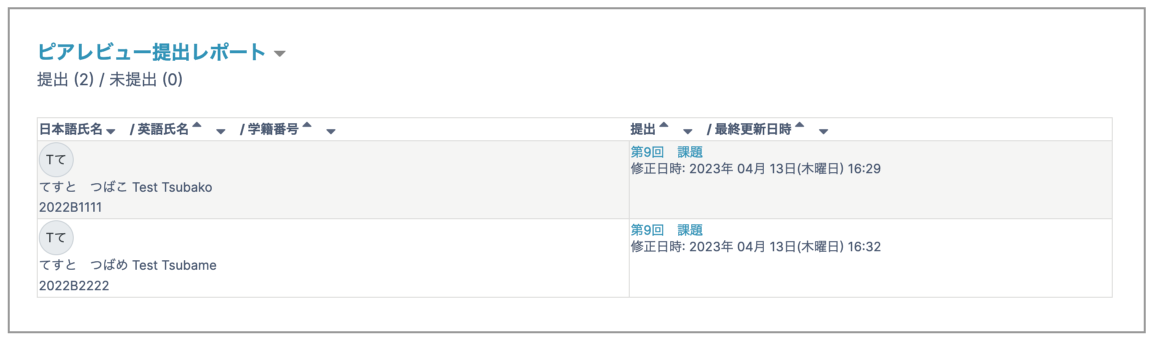
On the Submission phase page, you can check the assignment submission status.
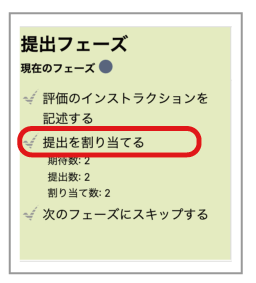
- Click "Allocate submissions".
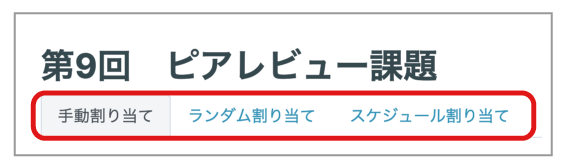
There are three ways to allocate submissions. Select the allocation method you want to use from the tabs at the top.
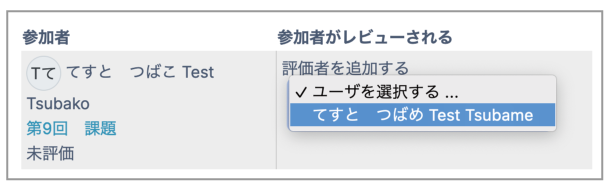
Manual allocation
On the left side of the page, use "Add assessor" to assign who will assess. When you configure it here, it is reflected automatically in the items on the right.
Random allocation
Allocate randomly based on "Allocation settings".
- Group mode: Can be set if course participants have been divided into groups in advance.
- Number of reviews: number of submissions each participant assesses
- Per submission: number of assessments for each submission
- Per reviewer: number of submissions assessed by each reviewer
- Remove current allocations: Select this to redo (reset) random allocation. If unselected, only students who have not yet been allocated are added.
- Participants can assess without submitting anything: Select this if you want participants who did not submit during the submission period to be able to assess.
- Add self-assessments: In addition to the number of reviews in random allocation, students can assess their own submission (you must select "Use self-assessment" under "Assessment settings" in the Setup phase).
Scheduled allocation
When "Enable scheduled allocation" is selected, allocations are automatically generated after the submission deadline according to "Allocation settings" on the same page.
- Status: Scheduled allocation is disabled if a deadline is not set in "Availability" under the Setup phase.
- The "Allocation settings" section is the same as for Random allocation.
After allocating submissions, click "Save changes".
- Click "Switch to the assessment phase" or "Skip to the next phase". A confirmation page is displayed; click "Continue".