To check the students and faculty/staff enrolled in a course, use the Participants screen. You can display it by selecting "Participants" from the menu at the top of the course screen.

The Participants table displays users enrolled in the course.
- Name: The name registered in LMS/MORE is displayed.
- Student ID: In LMS, the student ID is displayed only for students. It is not displayed for faculty/staff users.
- Role: The role assigned to the user in the course is displayed.
- Group: If the group feature is being used, the groups to which the user belongs are displayed here.
- Last access to course: The time elapsed since the user's last access is displayed.
- Status: Usually Active is displayed. Users with a status other than Active cannot view the course.
Searching for Users
You can search for users by entering search criteria in the form at the top of the screen and applying a filter to the table.
To search by name, use Keyword.
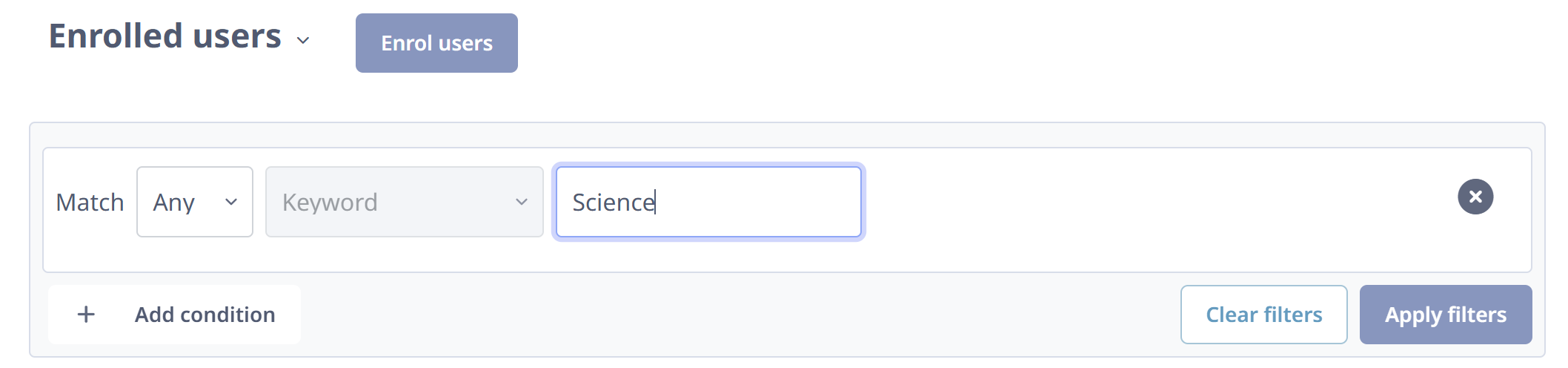
After entering conditions and clicking "Apply filters", the applied conditions are displayed as badges to the right of the form. To remove an unnecessary condition, click the x icon.

After setting the conditions, click "Apply filters" to display only users who match the conditions.
If no users match the conditions, "Nothing to display" will be displayed.
Downloading the User List
The list of students enrolled in each course can be downloaded from the Grader report.
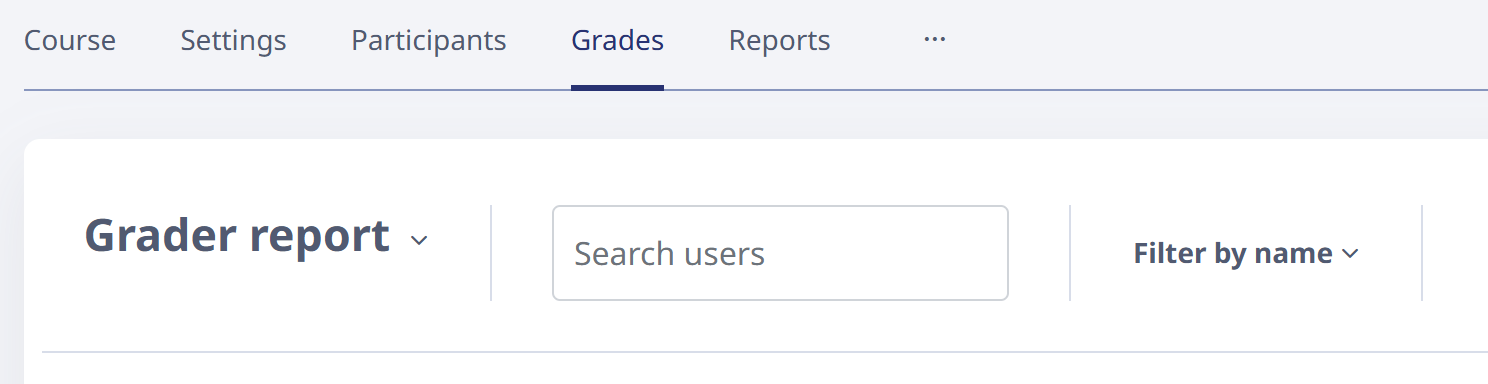
Select "Grades" from the menu at the top of the course screen to display the Grader report screen.
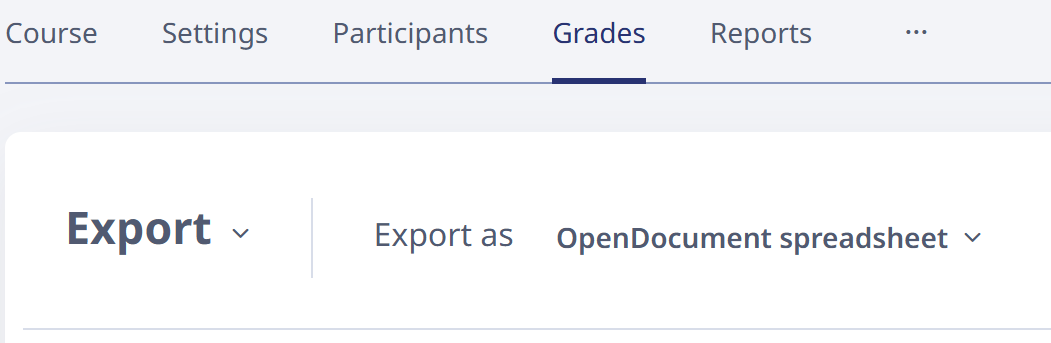
Click "Grader report" and select "Export" from the dropdown menu. To download in Excel format, select "Excel spreadsheet" as the export format.
Then click "Download" at the bottom right of the screen to download the file.