
Recording a long class can create a very large file, which may affect uploading to the system and students' viewing environment. This section introduces a simple way to reduce a video's file size while maintaining image quality, using a free compression tool.
You can install it from the following addresses.
HandBrake: https://handbrake.fr/
- Start "HandBrake" and select the target video file, or drag and drop the file directly into the start screen.
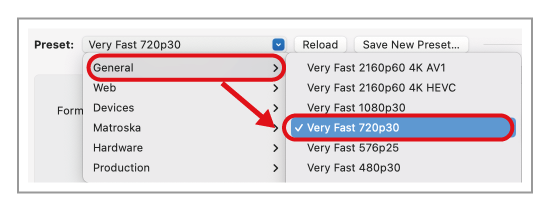
- Under "Preset", select "General" and then "Very Fast 720p30".
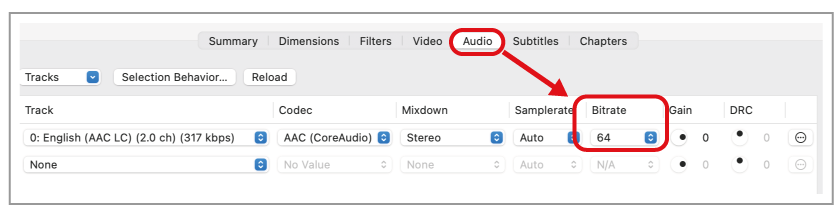
- Set the "Audio" bitrate to "64".
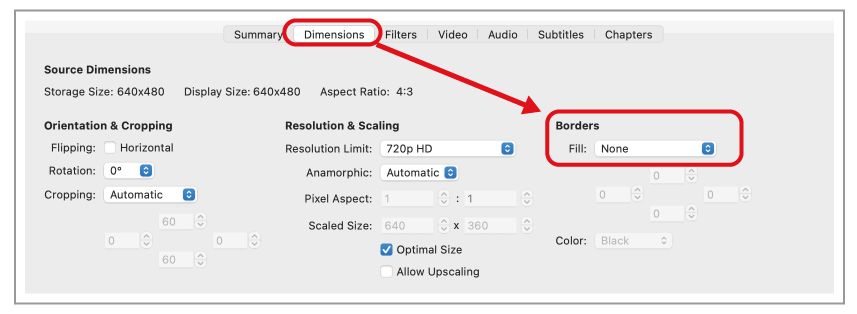
- Confirm that "Borders" under "Dimensions" is "None", or that all values are "0".
- Confirm the filename and save location at the bottom of the screen.

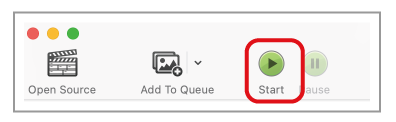
- Click "Start".
- Confirm that the file size has been reduced.
