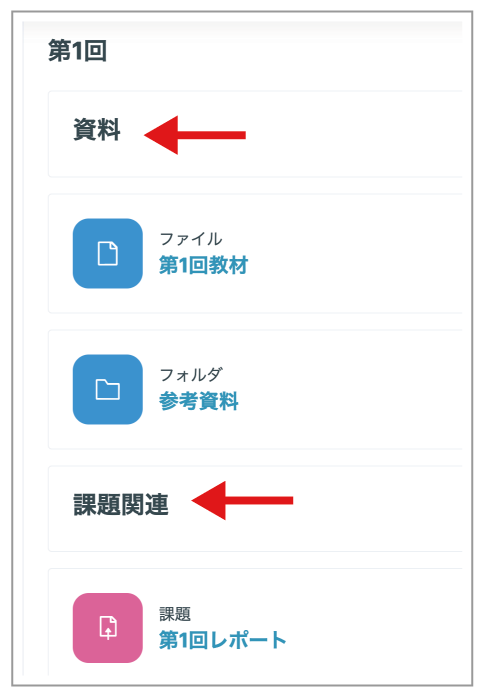
As indicated by the arrows in the figure below, you can place a subheading in a course section.
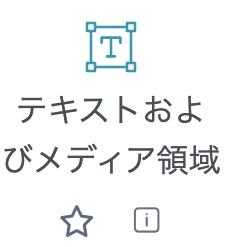
- From "Add an activity or resource", select "Text and media area".
- Enter the text you want to display in the "Text" field.
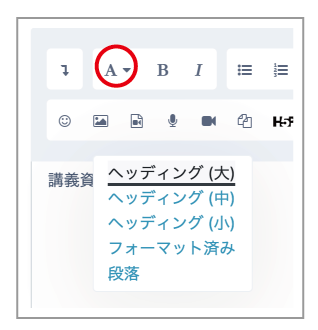
- To make the text larger and easier to read, click the area circled in red in the figure below and select "Heading (large)".
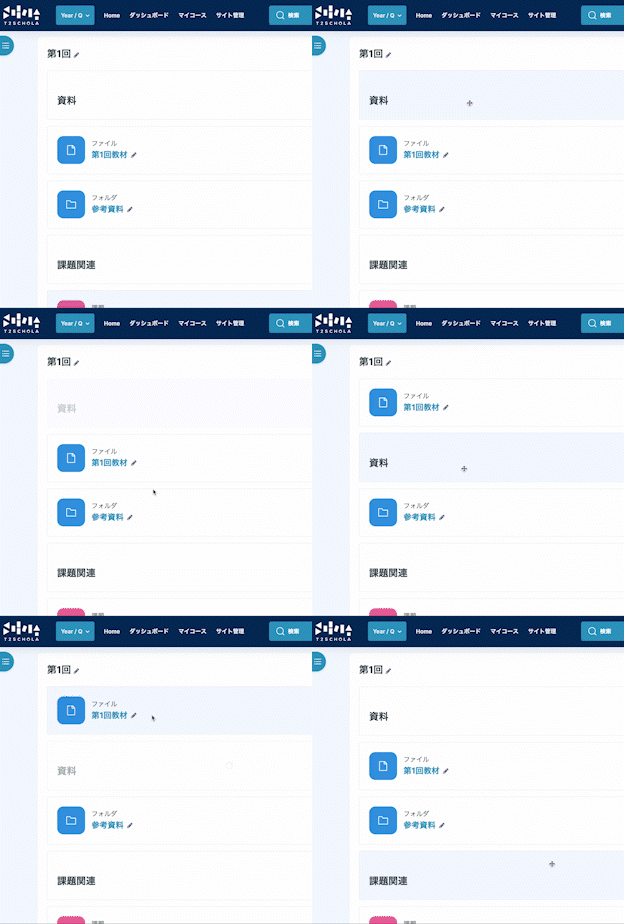
- To move the Text and media area you added, hover over its icon on the left (or to the left of its name) until the pointer changes to a cross, then drag and drop it to the desired location.