
You can insert equations with the LMS/MORE editor.
- Click the down arrow in the editor to display additional editor menu options, then click the calculator icon.

- The Equation editor opens.

You can create an equation by selecting the displayed icons.
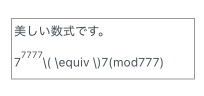
It may look like this while you are editing, but it renders properly as an equation when you click "Save and display".
Students see the following screen.
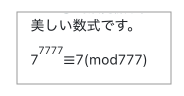
However, some equations, such as the one below, are tedious to create by selecting icons one at a time.
In that case, use TeX commands.
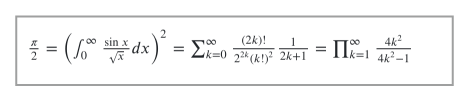
To create an equation like the one above, enter the following:
\frac{\pi}{2} =
\left( \int_{0}^{\infty} \frac{\sin x}{\sqrt{x}} dx \right)^2 =
\sum_{k=0}^{\infty} \frac{(2k)!}{2^{2k}(k!)^2} \frac{1}{2k+1} =
\prod_{k=1}^{\infty} \frac{4k^2}{4k^2 - 1}
To use TeX commands, enter them in the white box labelled "Edit equation in TeX" in the Equation editor.
- When you finish entering the equation, click "Save equation".