
LMS/MORE provides the Timeline and Calendar to let you view, in one place, Assignments and other activities with dates such as due dates.
Timeline
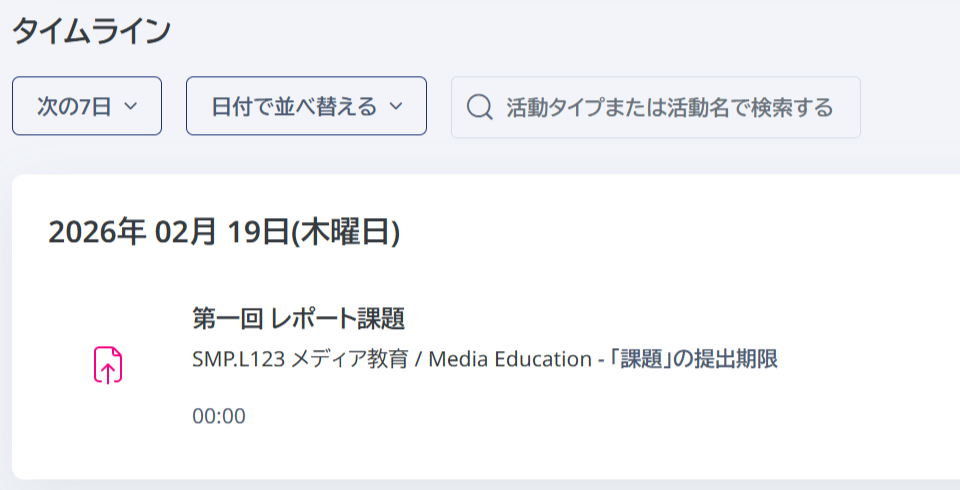
The Timeline is displayed at the bottom of the Dashboard shown immediately after you log in.
The Timeline lists Assignments and other activities for which due dates have been set.
Calendar
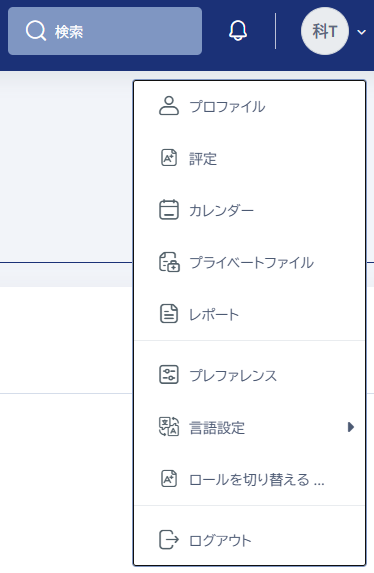
Select "Calendar" from the user menu to access the Calendar.
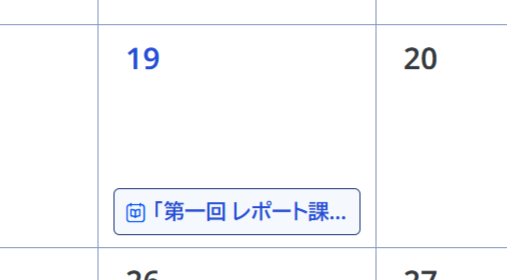
The Calendar displays Assignments and other items for which a due date and time have been set.
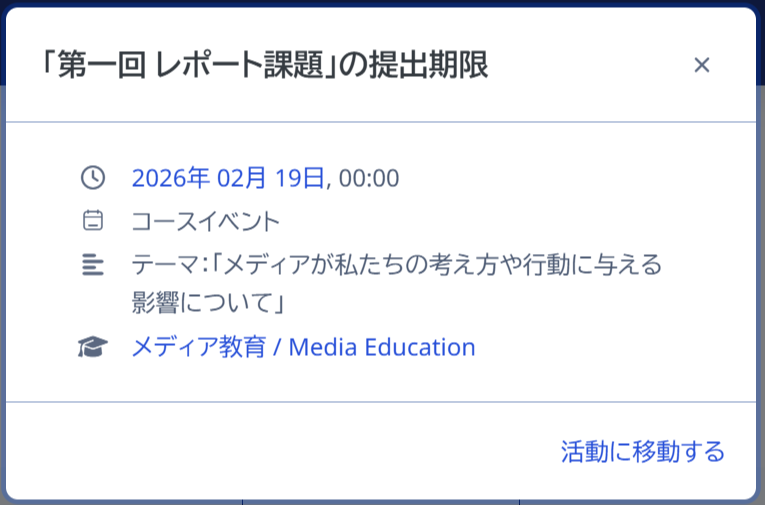
Click an item to display its details. You can go directly to the course or Assignment (activity).
Exporting your calendar
You can obtain a calendar URL and add it to Google Calendar or similar services to view schedules for Assignments and other activities externally.
Click "Import or export calendars" at the bottom of the Calendar page.

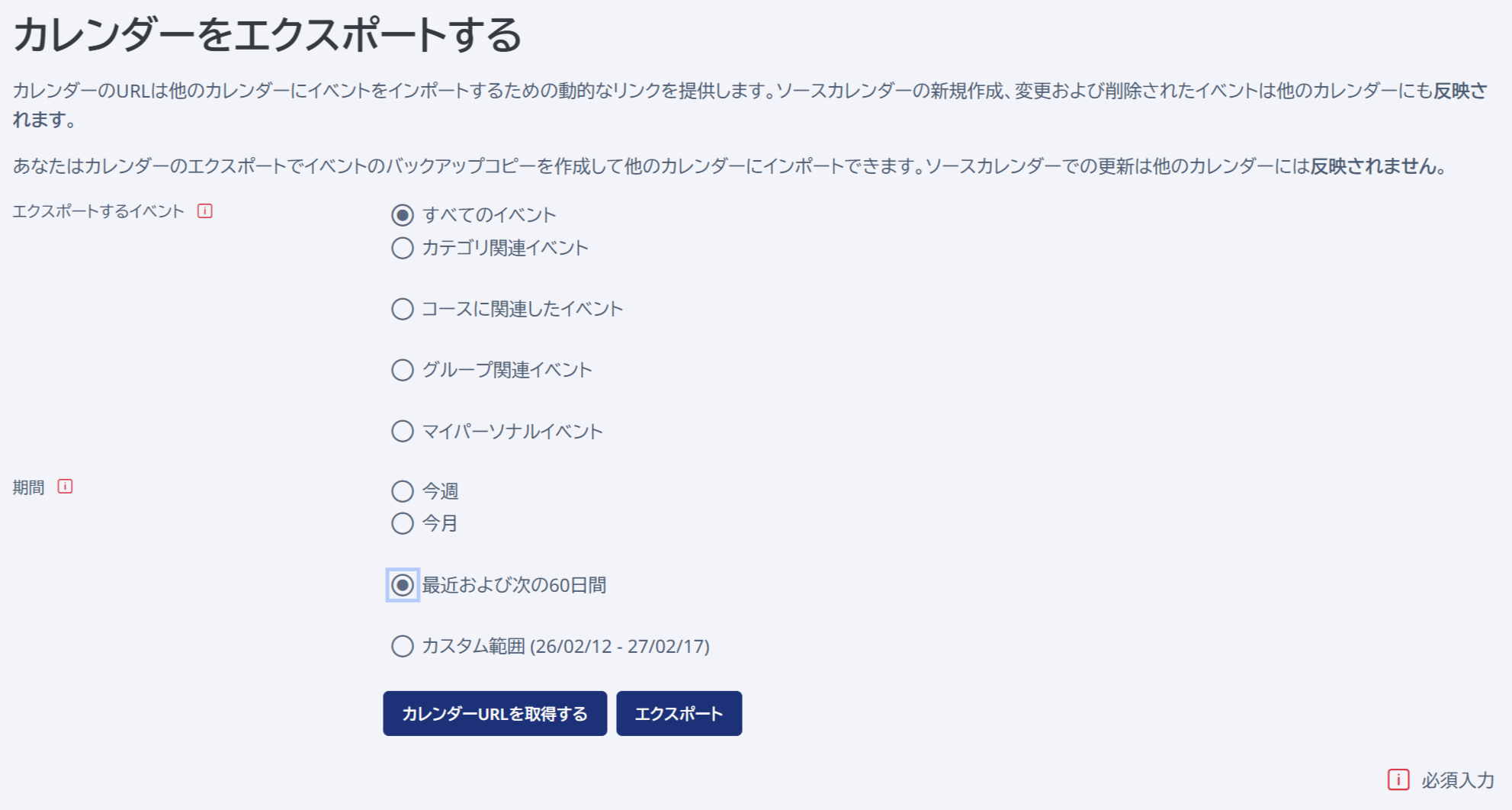
To create a new export, click "Export calendar".

Select the relevant events and period. Then click "Get calendar URL" to obtain a calendar that can be viewed from an external system.
Add the URL you obtained to the service or app that manages your calendar, such as Google Calendar. For instructions on adding a calendar in each service or app, see its help (for example: Add someone else's Google Calendar).
Note that anyone can view a calendar using its URL without logging in as you. Handle the URL with great care.