
By using the Self enrolment feature, even users who are not enrolled in a course can gain access to the course by using an enrolment key provided by the teacher or person in charge.
The roles currently available for Self enrolment are Teacher, Student, GSA-R, and TA.
Self Enrolment in Science Tokyo LMS
In Science Tokyo LMS, users are automatically enrolled in courses based on information about instructors assigned to courses and students’ course registrations in the Web system for S&F. Therefore, Self enrolment may be used in situations such as the following.
- Add TAs, course assistants, or similar users who are not managed in the Web system for S&F and do not need to use systems other than LMS for the class
- Add students before they complete course registration
Self Enrolment in Science Tokyo MORE
Because Science Tokyo MORE is not linked to the Web system for S&F, Self enrolment is used unless a request is made for an administrator to add users in bulk.
Setting Up Self Enrolment as a Teacher
At the top of the course where you want to enable Self enrolment, click the Participants tab, then click the displayed "Enrolled users".
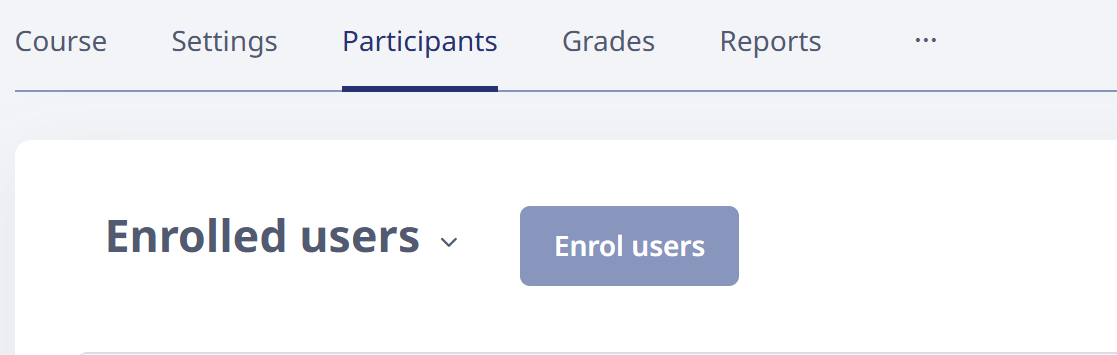
In the displayed dropdown menu, select "Enrolment methods".
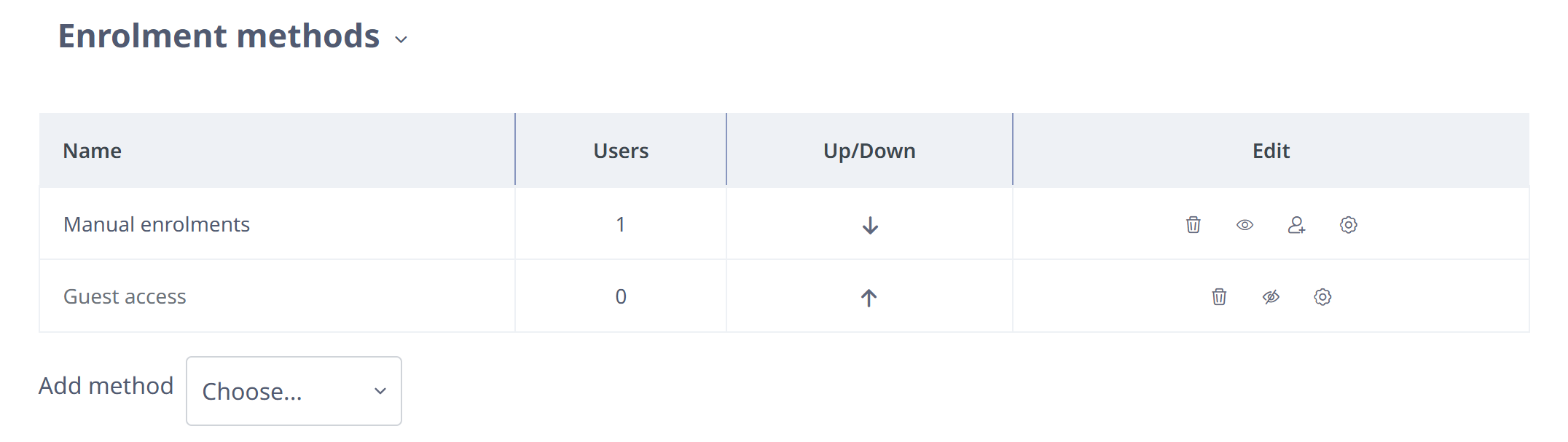
From "Add method" at the bottom right of the table, select "Self enrolment" and configure the settings.
- Enrolment key: The password, or passphrase, used for Self enrolment
- Default assigned role: The role assigned to users who self-enrol using that enrolment key
Users who can log in to LMS/MORE and know the enrolment key will be able to self-enrol freely. If necessary, set restrictions such as Enrolment duration, Start date, End date, or Max enrolled users.
After configuring the settings, click "Add method".
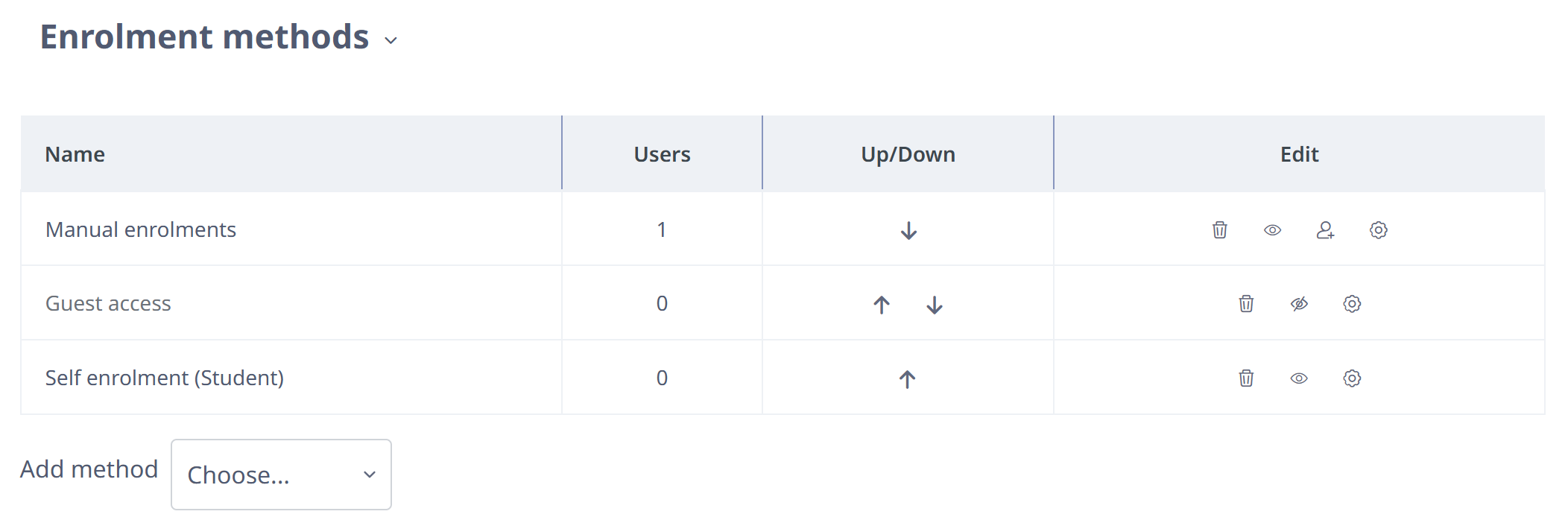
Confirm that a Self enrolment row has been added to the table and that the eye icon in the edit column is open, meaning enabled.
After confirming the settings, tell the target users to self-enrol using the enrolment key you set.
The participant-side procedure for Self enrolment is summarized in the following FAQ.
https://isct-edu.tayori.com/q/lms-en/detail/1295098/
Notes on Self Enrolment
If Max enrolled users is not set, multiple users can self-enrol with the same role using a single enrolment key.
If multiple Self enrolment methods with the same role are set in one course, users will not be able to distinguish between them when self-enrolling.
If you change the enrolment key for each user, set Max enrolled users and also set a Custom instance name, then provide that name together with the enrolment key to the target user.