
You can set the Quiz opening and closing dates and times, as well as its time limit, in "Timing" in the settings. You can also configure the period during which students can attempt the Quiz and what happens when the time limit expires.
Timing
Open the quiz: Set the date and time when students can start attempting the Quiz.
Close the quiz: Set the date and time when students can no longer attempt the Quiz.
These date and time settings apply only when "Enable" is selected.
- Time limit: To limit the time allowed for answers, select "Enable" and set a duration and unit.
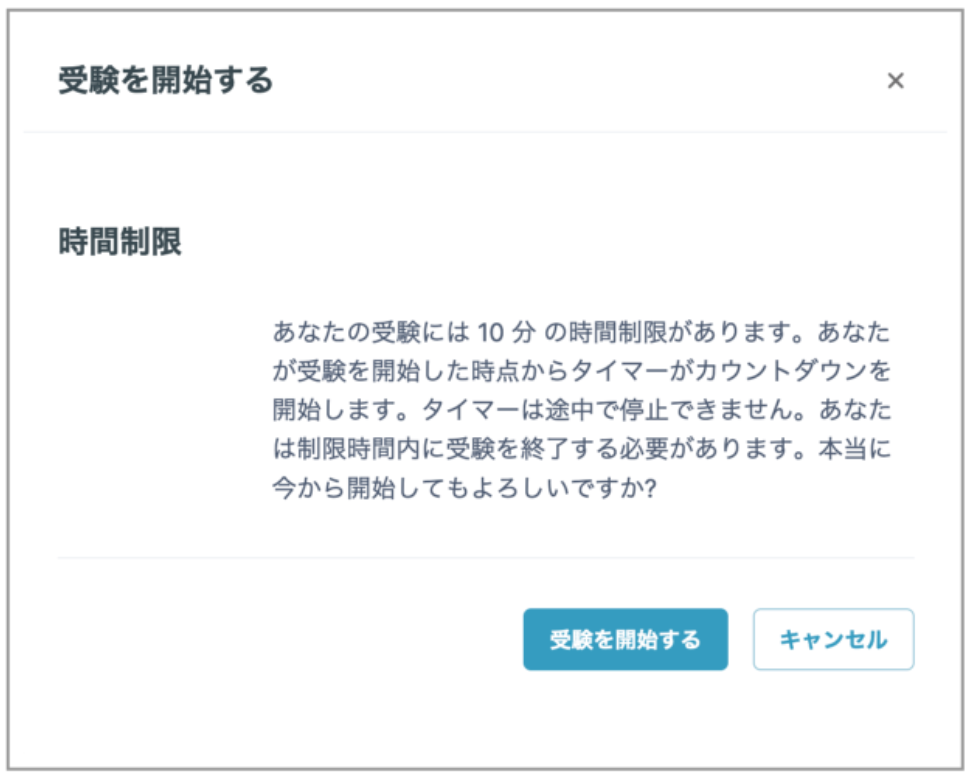
When a time limit is set, students see it before starting the Quiz, and a timer is displayed while they are taking it.
_Note:_ Enter the time-limit number using half-width characters. Full-width characters may disappear when you save.
When time expires
You can configure what happens when a limit is reached, for example, when the Quiz closes or the time limit is reached while a student has not submitted their answers.
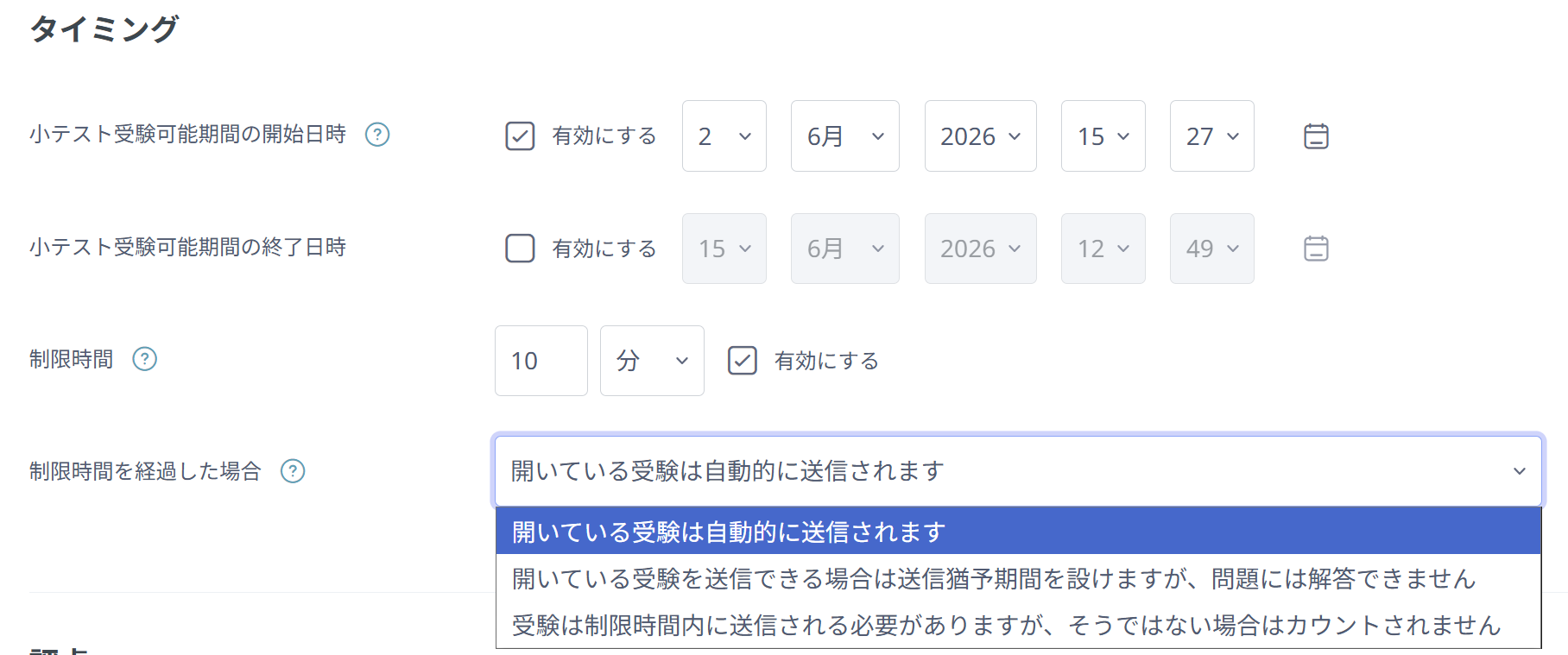
Open attempts are submitted automatically: The answers entered so far are submitted automatically when the Quiz close date/time or the time limit is reached. This is the recommended setting.
-
There is a grace period when open attempts can be submitted, but no more questions answered: Students have a grace period in which to submit, but cannot answer questions after the Quiz closes or the time limit is reached.
_Note:_ With this setting, students cannot submit their answers if the grace period expires while the attempt remains unsubmitted.
Attempts must be submitted before time expires, or they are not counted: An attempt not submitted within the Quiz availability period and time limit is not counted as a Quiz attempt.
Note
Students must click several buttons to finish a Quiz. We normally recommend "Open attempts are submitted automatically" so that answers are submitted automatically even when a student finishes without submitting.