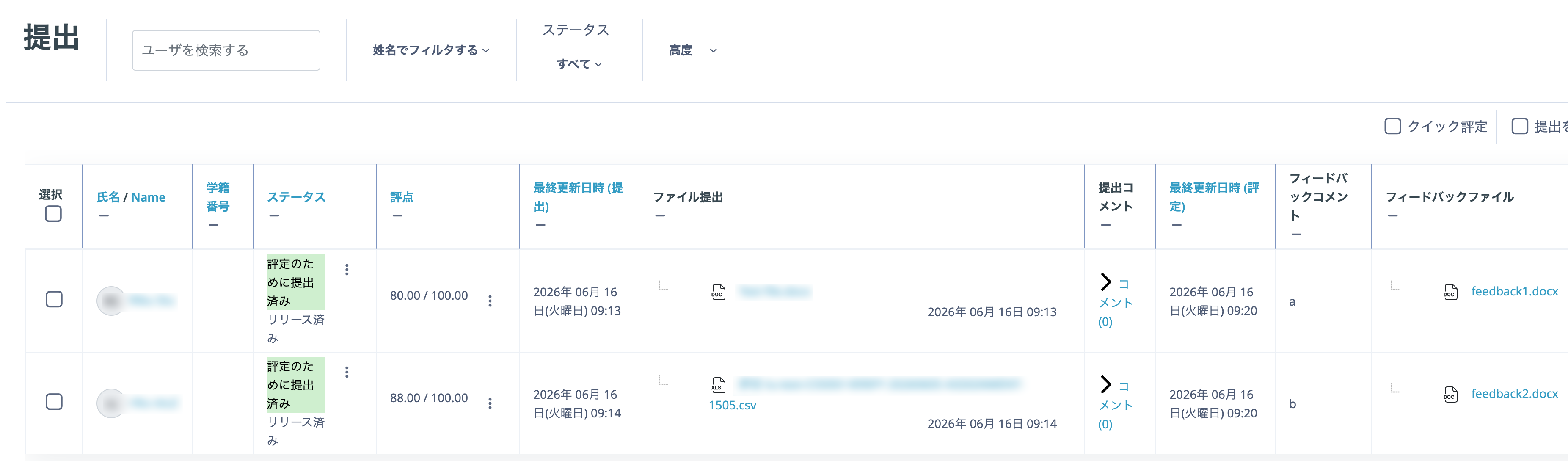
You can bulk-upload files containing comments on each student's Word or PDF report (referred to below as feedback files) and return them to the respective students.
- From the Assignment's "View all submissions" page, select "Download submissions in folders" and click "Download all submissions".
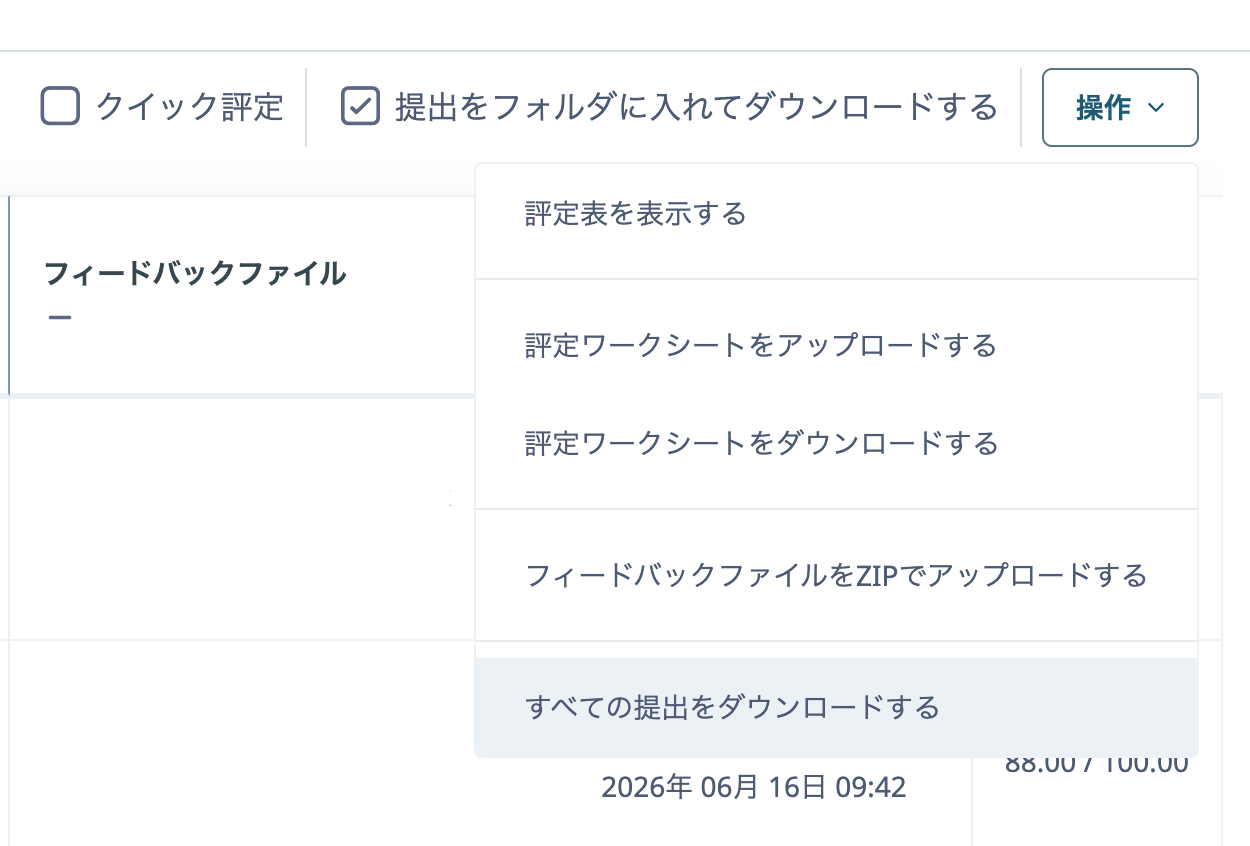
- The file is downloaded as a ZIP file. Extract it.
- Put the feedback file you want to return to each student into that student's folder.
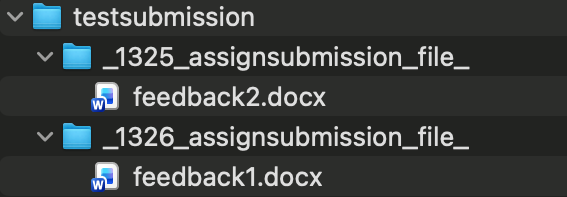
- Compress all student folders into one archive. In the example above, compress the testsubmission folder.
- Return to the relevant Assignment's "View all submissions" page, then from "Actions" click "Upload feedback files in a zip".
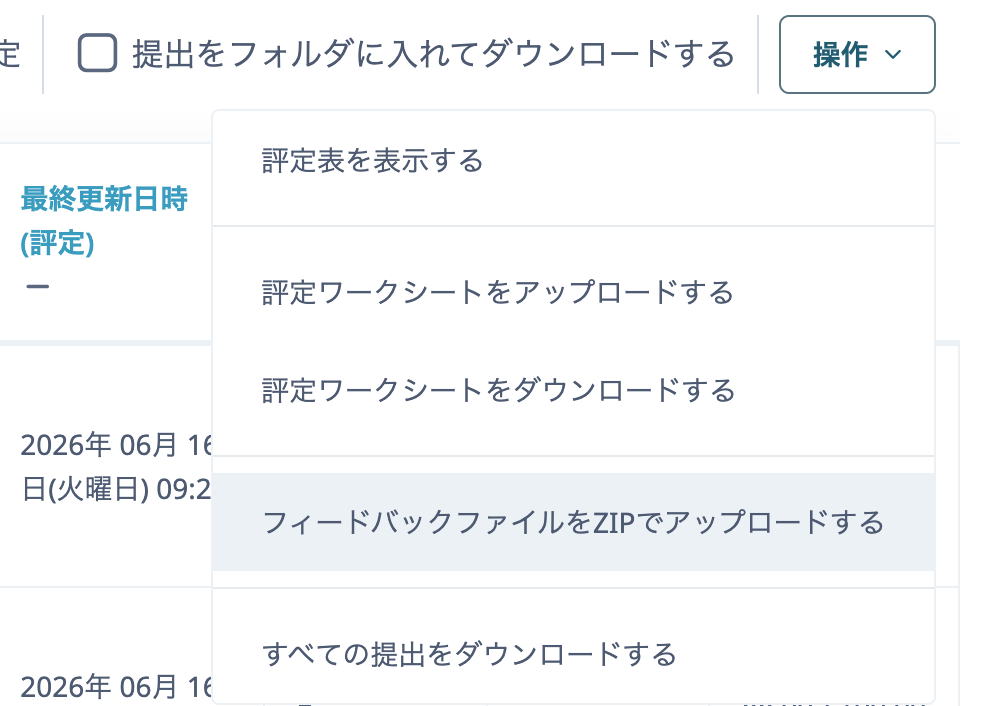
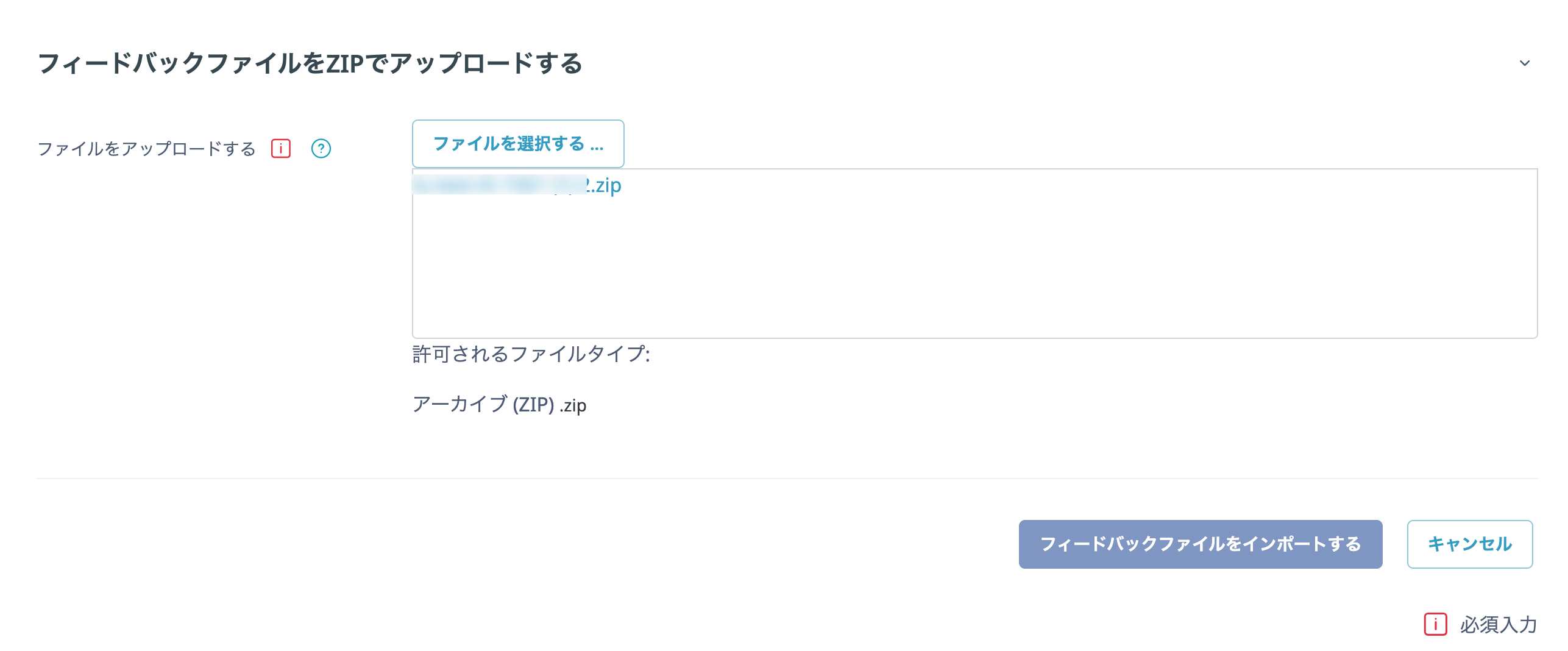
- Upload the ZIP file, then click "Import feedback files".
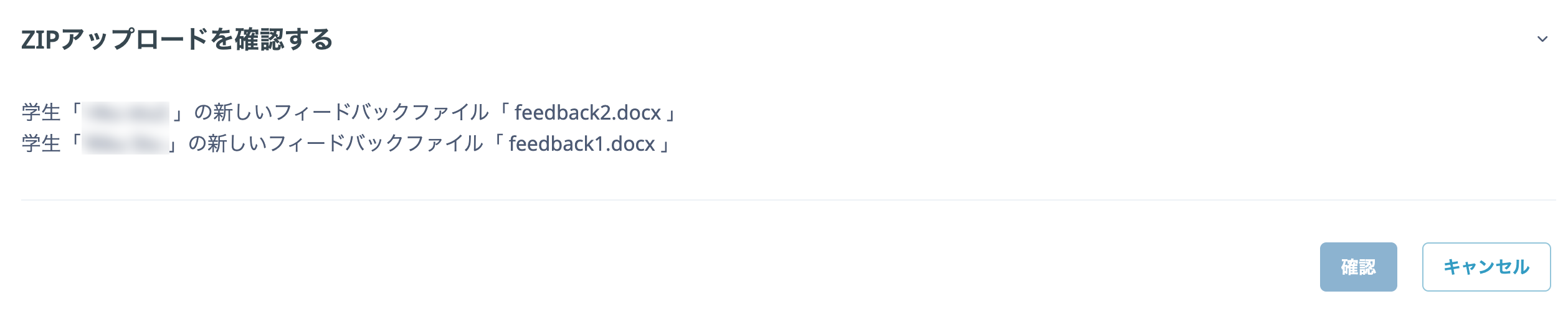
- Check the files to be uploaded, then click "Confirm".
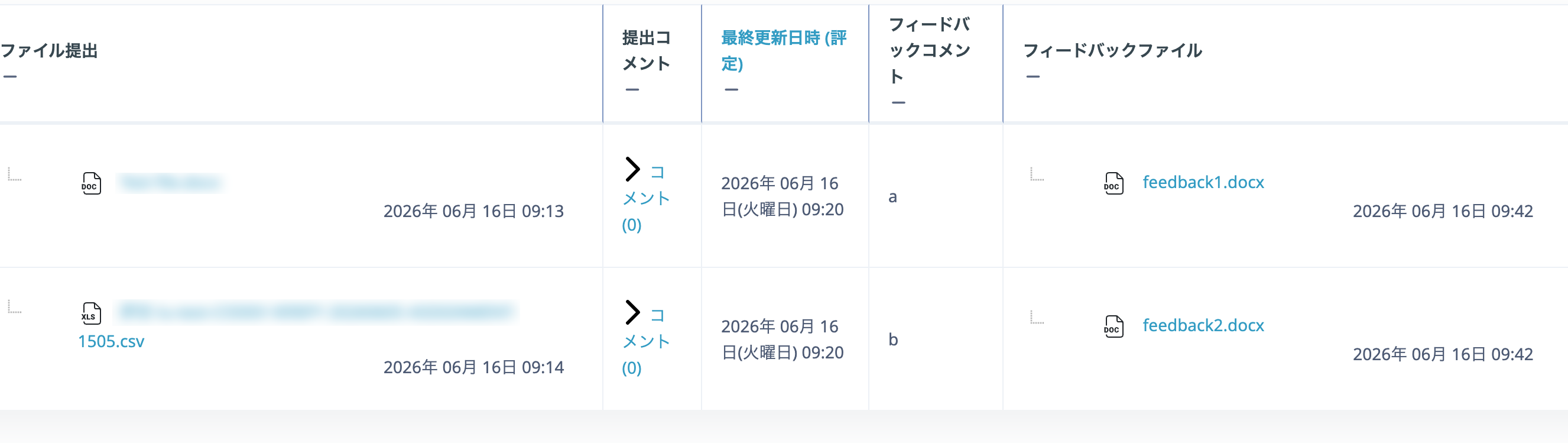
- On the submissions list, confirm that the feedback files have been uploaded for each student in the "Feedback files" column.
Using marking workflow
The following procedure applies when "Use marking workflow" is set to "Yes" in the Assignment grade settings. You can release grades and feedback files to all students at the time you choose.
When "Use marking workflow" is set to "Yes", uploading feedback files alone does not make them visible to students. To release them, change "Marking workflow state" to "Released".
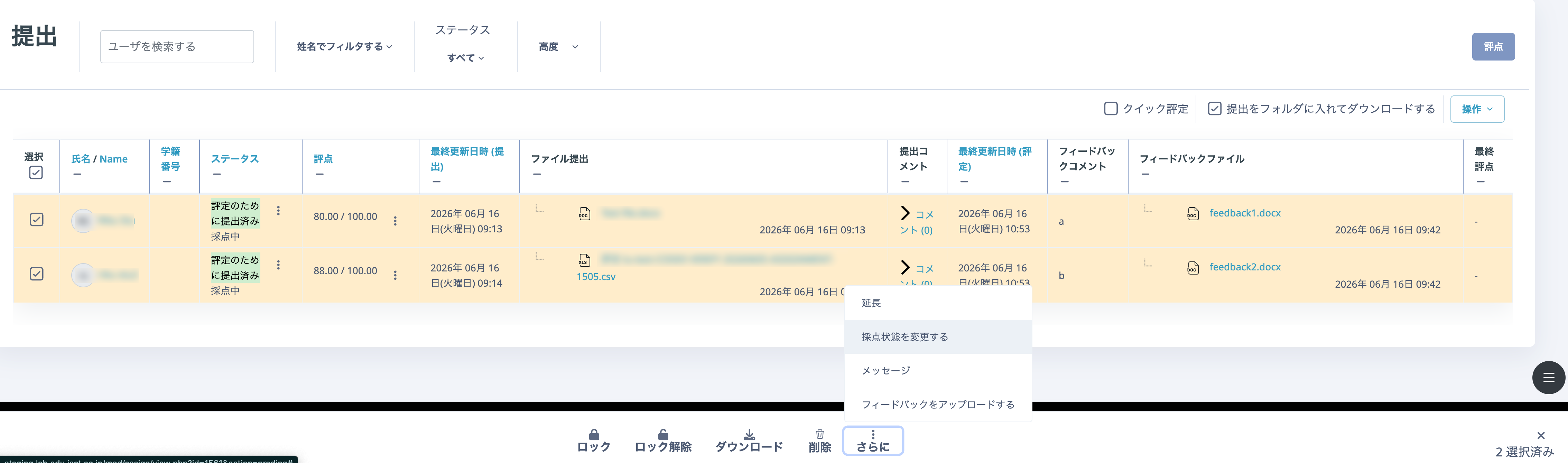
- Once the feedback files above have been uploaded, click "View all submissions" on the Assignment page and select the checkbox in the leftmost "Select" column of the displayed list.
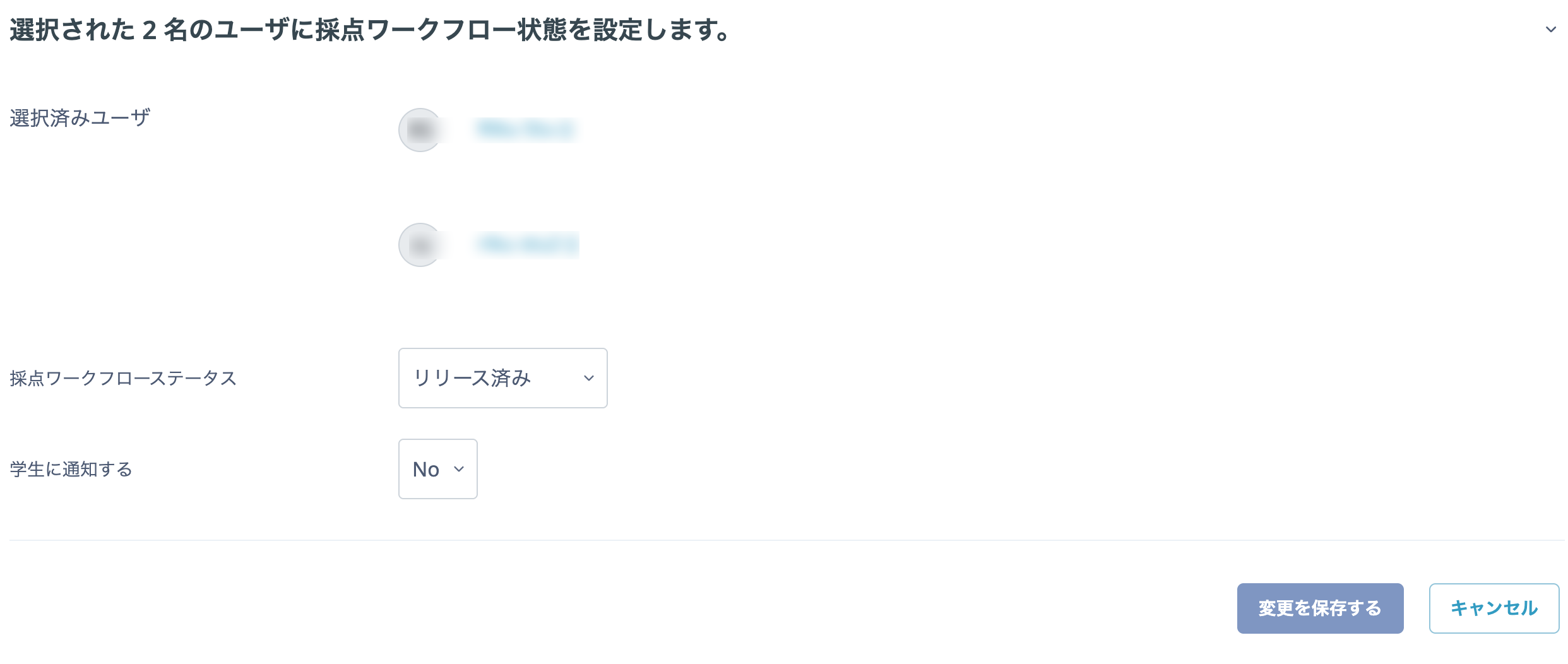
- From the "With selected..." drop-down menu at the bottom of the page, click "Change marking state".
- Change "Marking workflow state" to "Released", then click "Save changes".
- Confirm that the state is "Released".