You can automatically create groups by specifying either the number of groups or the number of members per group.
- On the Groups page, click "Auto-create groups".
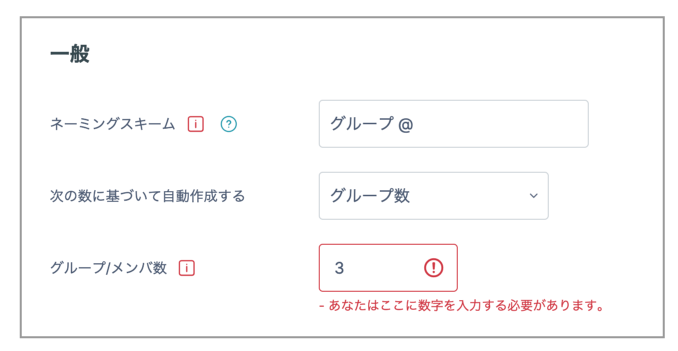
- Enter a "Naming scheme". > Entering "Group @" creates Group A, Group B, Group C, and so on. > Entering "Group #" creates Group 1, Group 2, Group 3, and so on.
- "Auto create based on": select either "Number of groups" or "Members per group" as the basis for automatic creation.
- "Group/member count": enter the number to use as the basis for creating the groups.
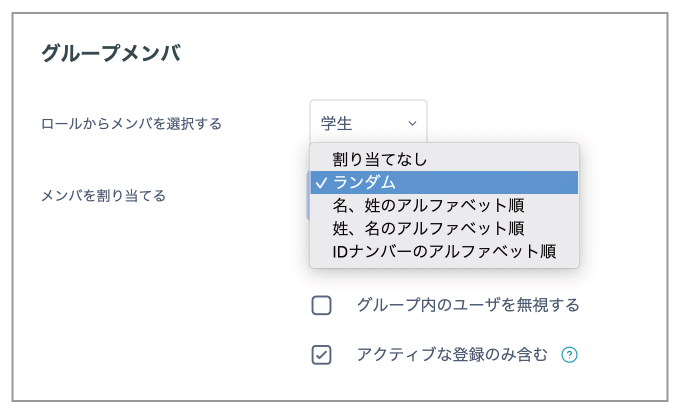
- "Allocate members" is set to "Randomly" by default. Change this setting if you want to use a different ordering, such as alphabetical order.
- Click "Preview" to display the proposed group allocation at the bottom of the page.
- If you are satisfied with the allocation, click "Submit".
Group membership created automatically can also be changed with the "Add/remove users" button.
Notes
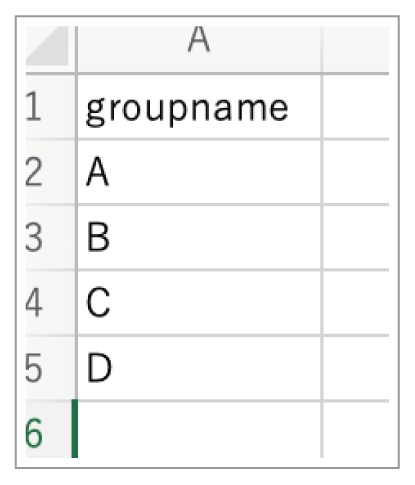
The "Import groups" feature lets you bulk-create only the group containers by uploading a specified CSV file.
_Important:_ This feature cannot bulk-enrol students in each group.
For this reason, we recommend "Auto-create groups" when efficiently allocating students to groups in a large class.