Using a grading worksheet
You can download a "grading worksheet" from LMS/MORE as a CSV file, enter grades in bulk on your computer, and upload it to apply the changes. Grades and feedback entered in bulk can be notified to and returned to each student as usual.
Note
If you enter grades directly in the "Grades" page on the left side of the course page, they are not correctly reflected on the individual Assignment activity pages. Students can view their grades, but the Assignment's grading status remains "Not graded".
Always download the grading worksheet from the Assignment, enter grades and other information in that worksheet, and upload it from the Assignment.
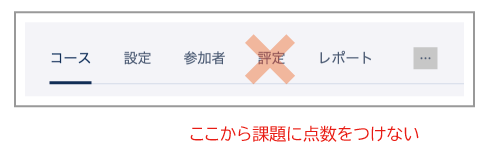
- Click the Assignment you want to grade or provide feedback on.
- Click "View all submissions".
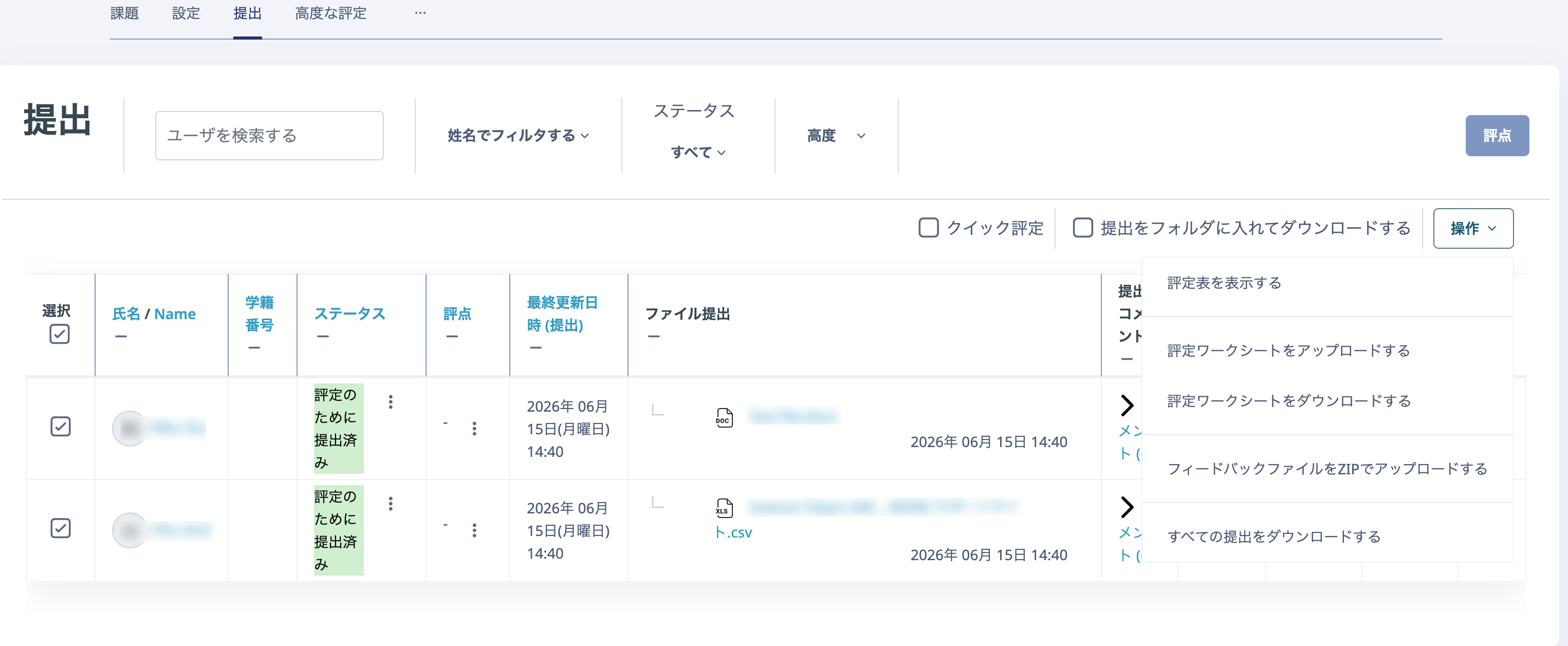
- From "Actions", select "Download grading worksheet".
- The grading worksheet is downloaded as a CSV file. Open it in Excel or similar software.
- Enter values in the "Grade" and/or "Feedback comments" columns, then save the file (you may enter either one alone).

Note
When saving after editing in Excel, do not change the file type (save format): leave it as "CSV UTF-8 (Comma delimited) (*.csv)".
- Return to the Assignment's "View all submissions" page.
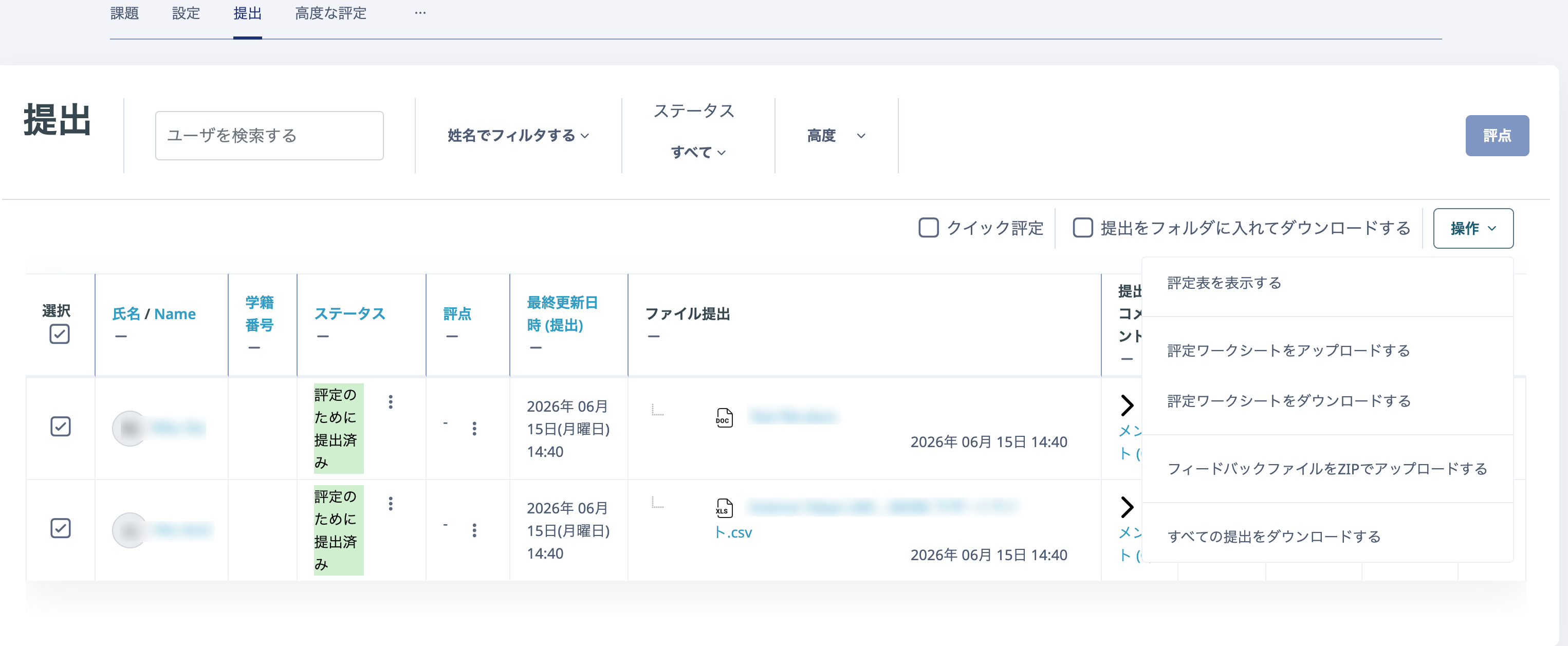
- From "Actions", click "Upload grading worksheet".
- Drag and drop the saved grading worksheet into the dotted box, select "Allow updating records that have been modified more recently in Moodle than in the spreadsheet", then click "Upload grading worksheet" at the bottom of the page.
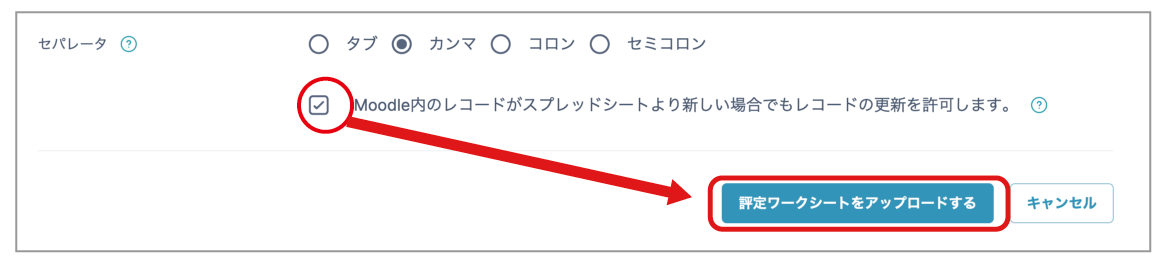
Note
If you do not select this checkbox, the changes will not be applied. Be sure to select it.
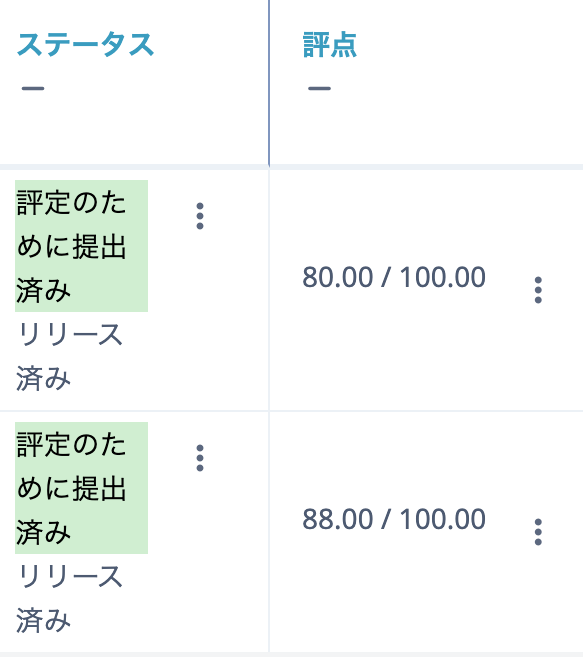
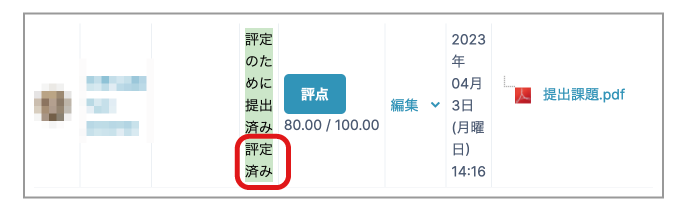
- The grade update status is displayed. Click "Continue" and confirm that the status is "Graded".
Using marking workflow
To withhold grades until marking is complete for all students and then release them at once, use the "Marking workflow" feature.
The following steps apply after uploading the CSV when "Use marking workflow" was set to "Yes" in the Assignment settings in advance.
- Once the grading worksheet has been uploaded, return to the Assignment's main page and click "View all submissions".
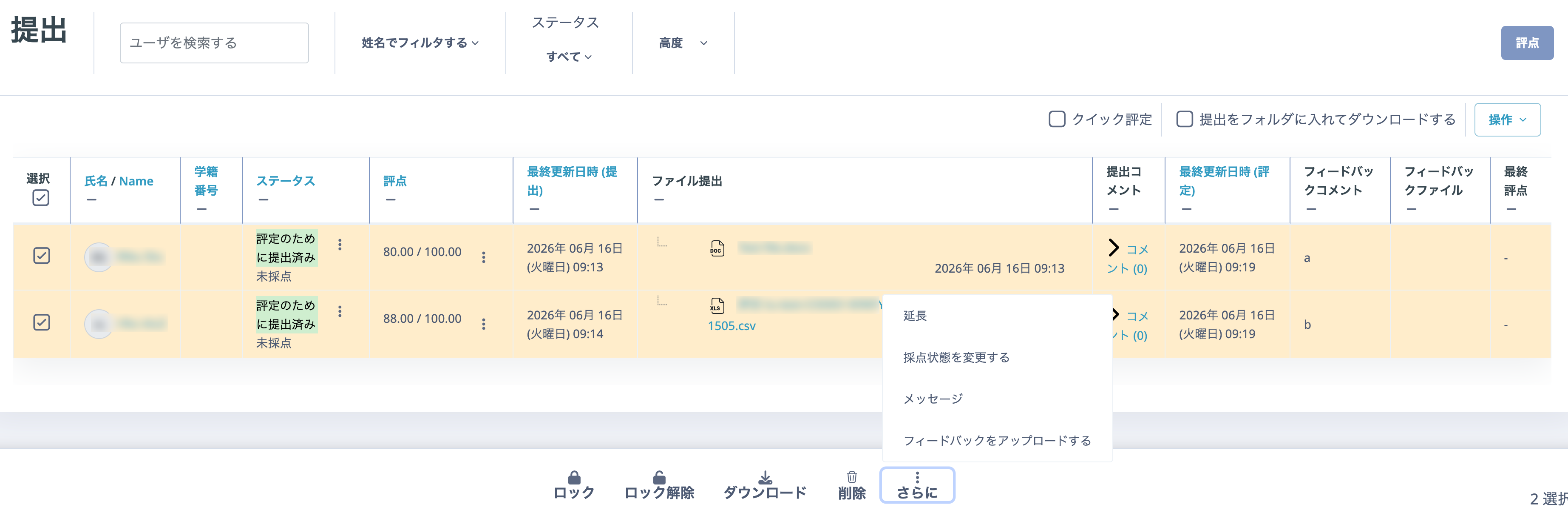
- In the leftmost "Select" column of the displayed submission list, select the students concerned.
- From the "With selected..." drop-down menu at the bottom of the page, click "Change marking state".
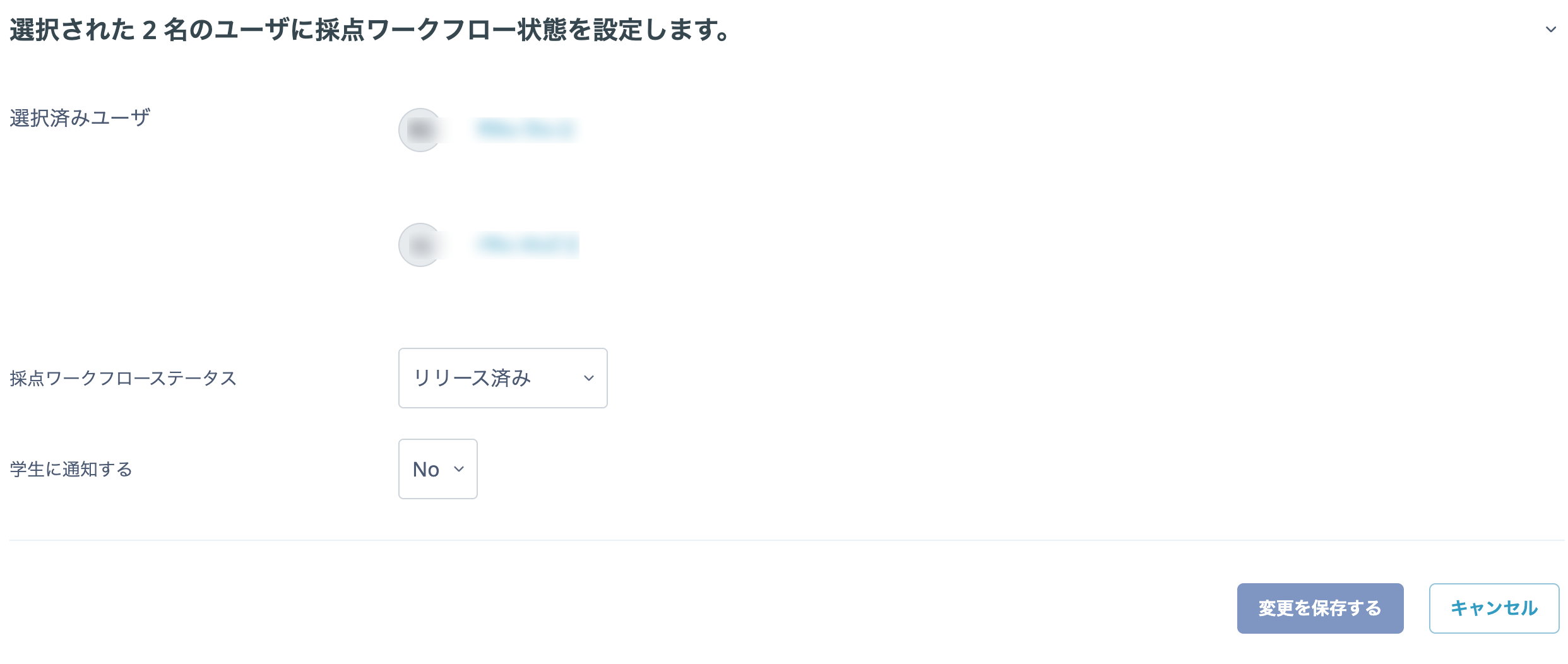
- Change "Marking workflow state" to "Released", then click "Save changes".
- Confirm that the state is "Released".