Adding Students to Groups
- Click "Participants" in the menu.
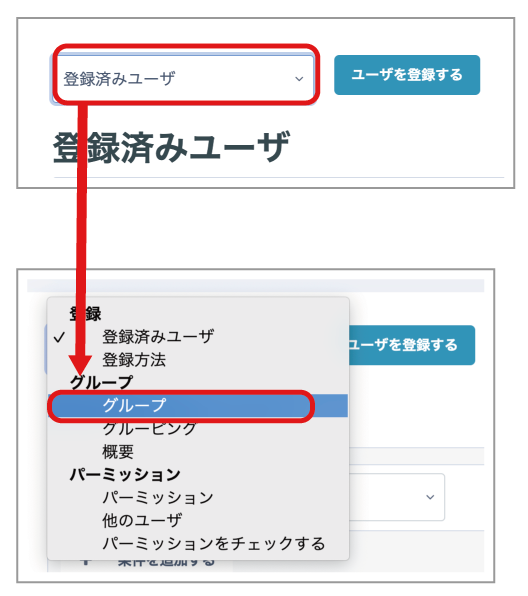
- Click "Enrolled users", then click "Groups".
- Click the "Create group" button.
- Enter a group name and, if necessary, a group description.
- Click "Save changes" to confirm.
- Repeat entering and saving the group name and description for as many groups as you want to create.
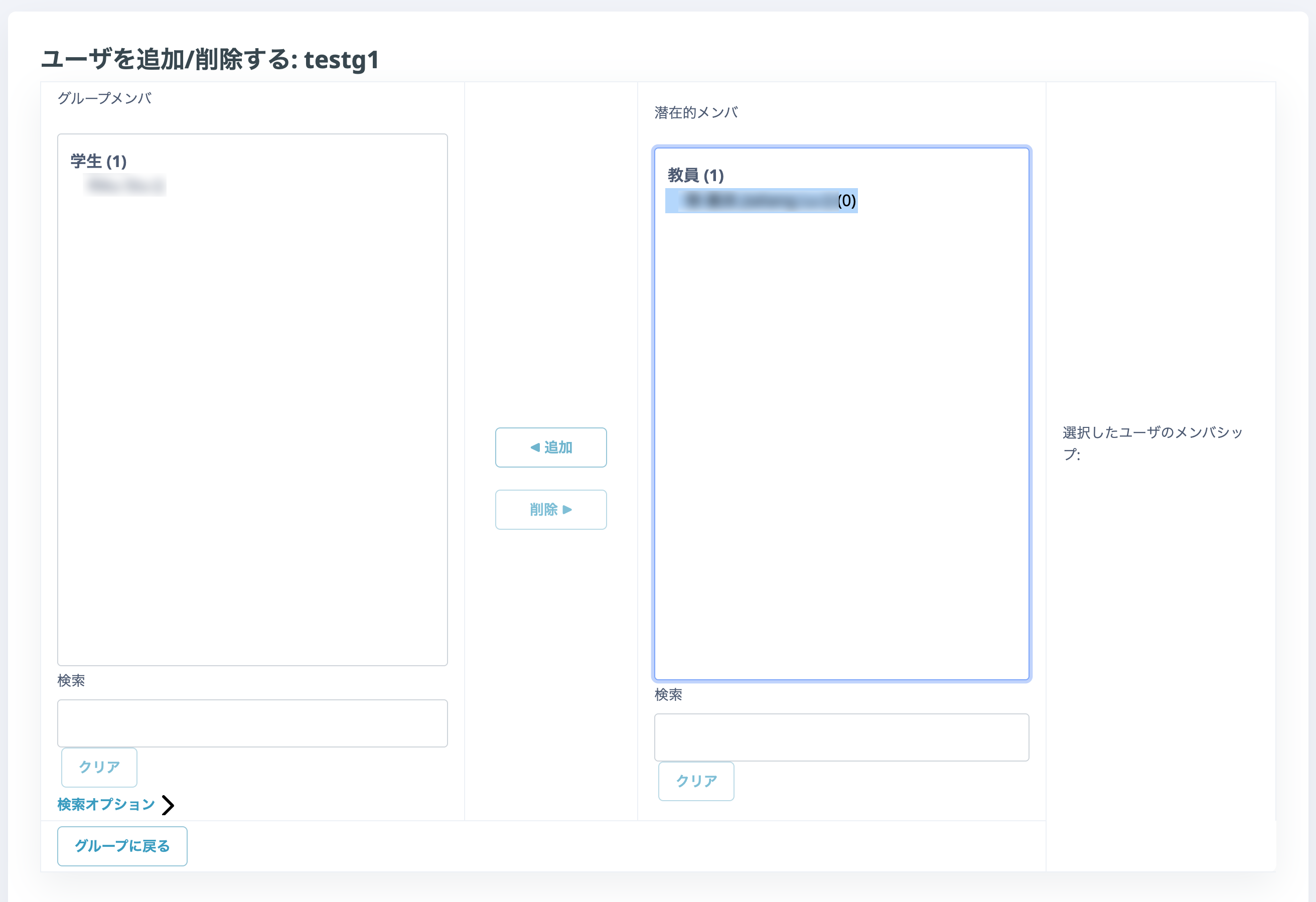
- Select the group to which you want to add students from the "Groups" list, then click "Add/remove users".
- Select the students you want to add from "Potential members".
- Use the Shift key to select a range, and the Control key to select multiple students.
- Click "Add" to add the selected students to the group.