
In Moodle, the general discussion-board feature is called a "Forum". This section explains how to create and use a Forum.
- From "Add an activity or resource", click "Forum".

*Enter a title of your choice in the "Forum name" field.
- Select the Forum type.
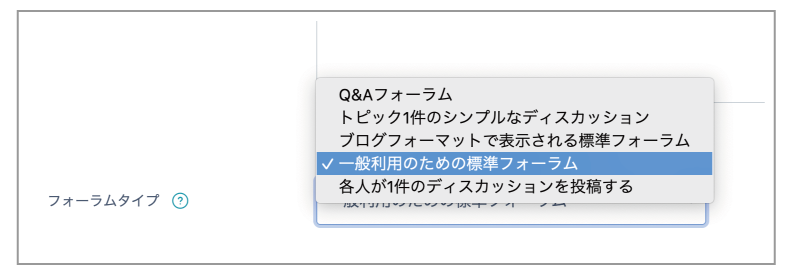
Standard forum for general use
This is the standard discussion-board format. Anyone can freely create a new discussion topic and reply to that topic.

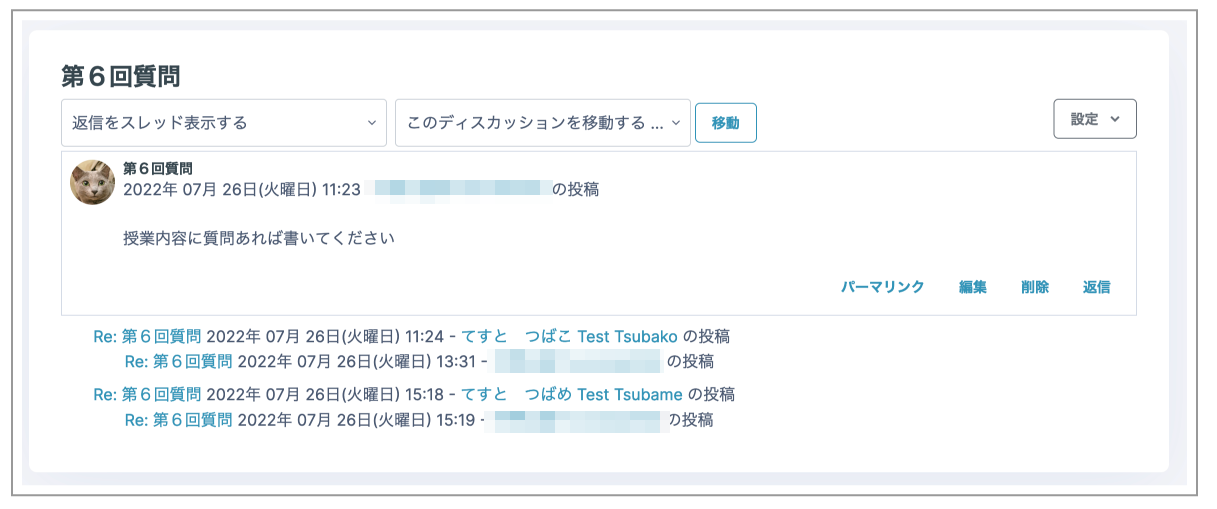
Q and A forum
This is a discussion-board format in which students answer a topic created by the teacher. Students cannot create new topics and cannot view other students' posts until they have posted their own answer.
Note: You can also reply privately to an individual student.
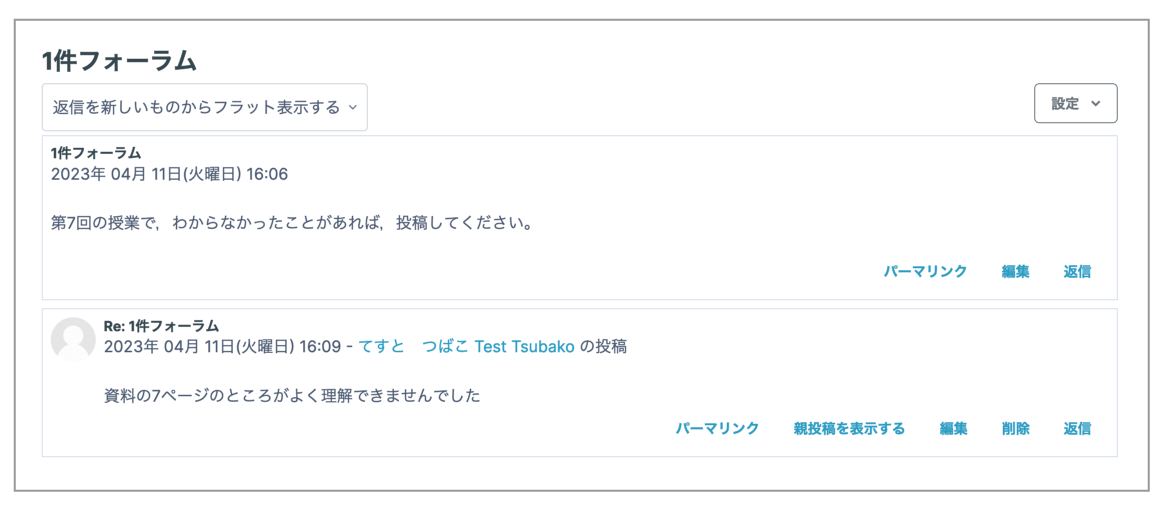
A single simple discussion
This Forum consists of a single topic created by the teacher. Students cannot create new topics; they can only reply to the content presented by the teacher.
Note: This Forum cannot be used when participants are divided into Groups.
Standard forum displayed in a blog-like format
Its functions are the same as those of a standard Forum, but the first post in each discussion is displayed in a blog-like format. Click "Discuss this topic" at the bottom right of a post to view the details or post a reply.
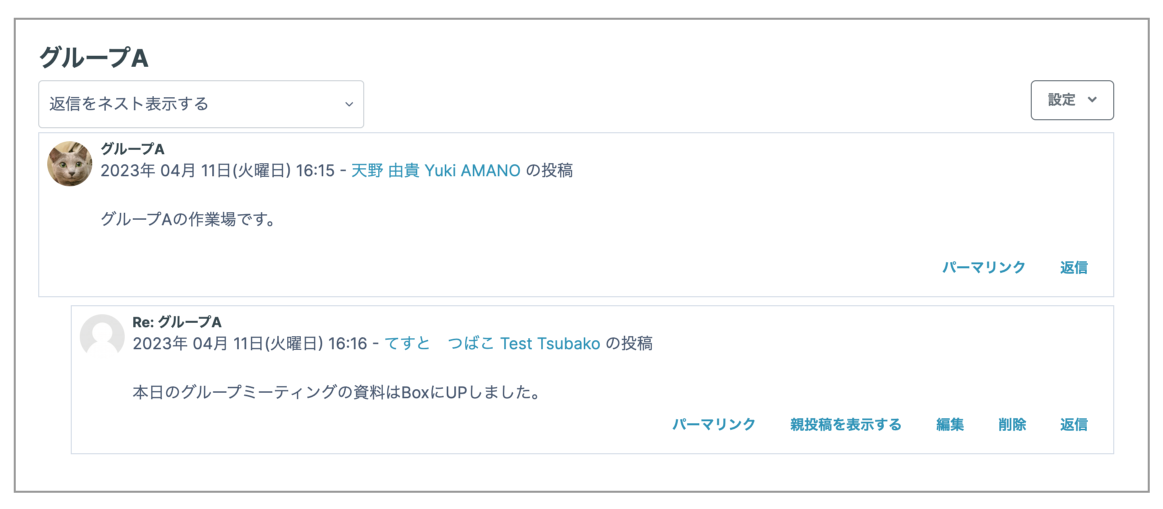
Each person posts one discussion
Each user can create only one new discussion topic. A user cannot create multiple topics.
Availability
To set a due date or cut-off date, select the "Enable" checkbox on the right of the relevant item, then specify the date and time.
Subscription and tracking
You can configure whether students receive notifications when posts are made in the Forum.
- To ensure that students receive notifications: select "Forced subscription". Students cannot change this setting.
- To let students choose whether to receive notifications: select "Optional subscription".
Restrict access
Configure this if you want to restrict access. For details, see "Configuring Restrict access".
- When all settings are complete, click "Save and display".