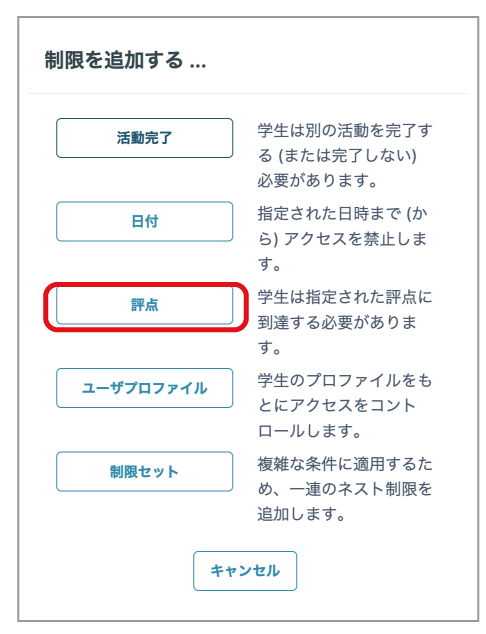
- Click "Grade" from "Settings" -> "Restrict access" -> "Add restriction".
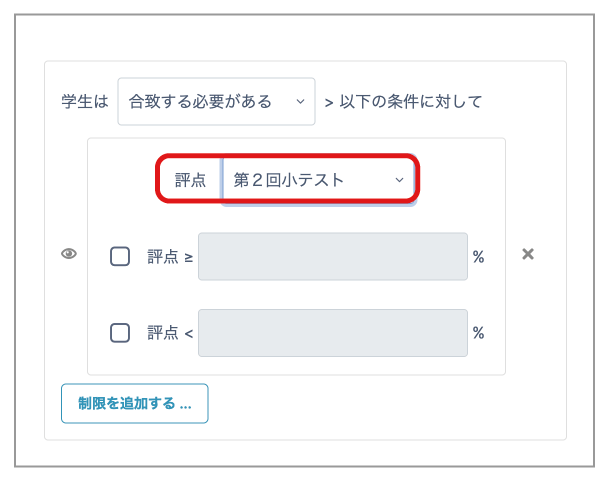
- Select the activity to use as the condition. In the example below, "Quiz 2" is selected.
- Check the box and enter a value to set the percentage grade to use as the condition. In the example below, it is set to "80% or higher".
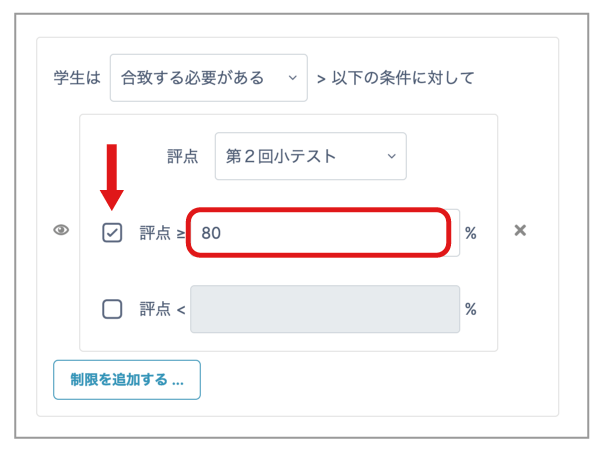
- For example, to set "0% or higher and less than 30%", leave the upper box blank and enter "30" in the box next to "<" below.
- Click "Save and return to course" at the bottom of the page.
Note
Do not forget to assign a grade to the activity used as the condition.
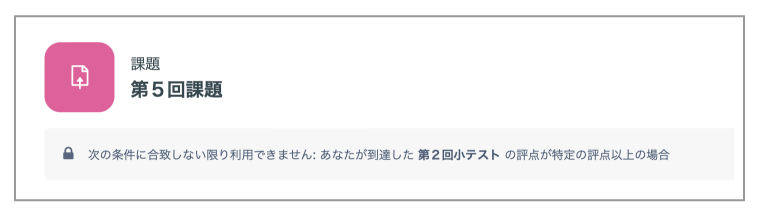
- It is displayed to students as shown below.