
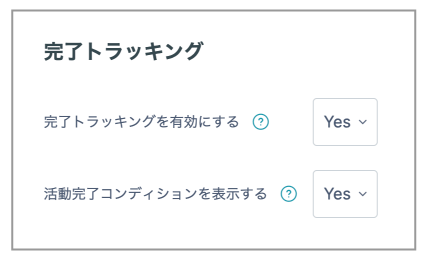
By default, the course's "Completion tracking" setting is enabled.
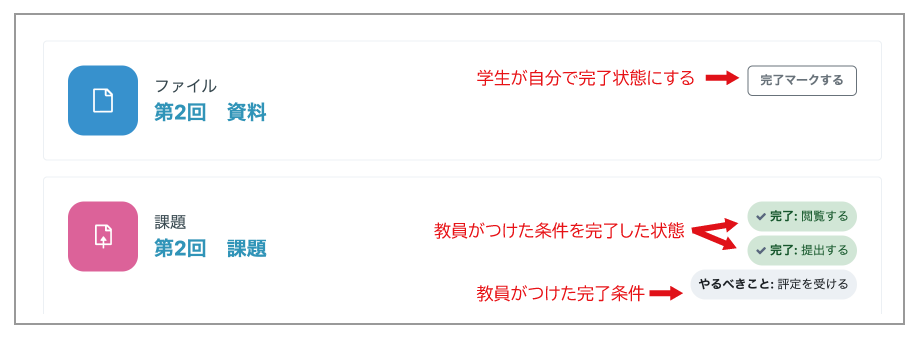
When completion tracking is enabled, students see completion information to the right of each item of content.
When a student manually marks an activity as complete, it is displayed as shown below.
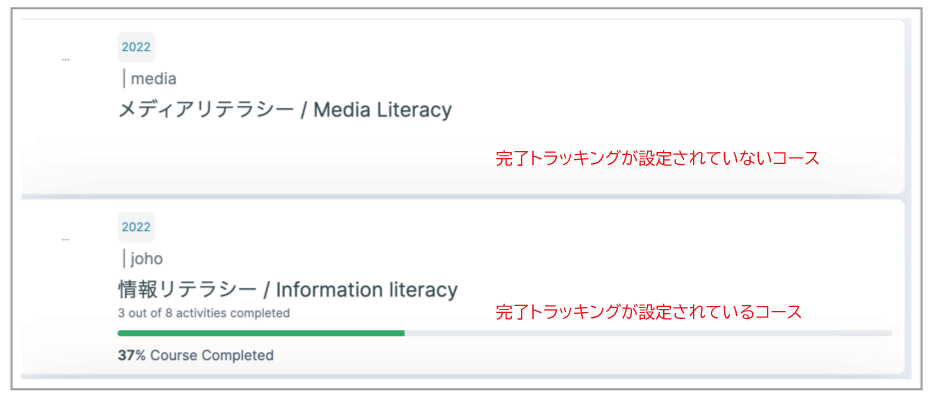
The course list on a student's Dashboard also displays each course's completion percentage as a progress bar.
For each item of content, you can configure when it is marked as complete. Select the condition from "Settings" -> "Activity completion" for the item. The following three options are available.
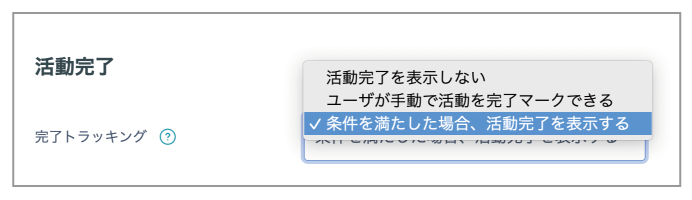
- Students can manually mark the activity as completed: This is the default. Students can select the checkbox themselves.
- Do not indicate activity completion: No checkbox is displayed next to the content.
- Show activity as complete when conditions are met: For details, see "Activity completion".