
On the "Templates" tab, you can use an existing template or create a new one. Templates shown in the "Public" drop-down menu are available throughout LMS/MORE.
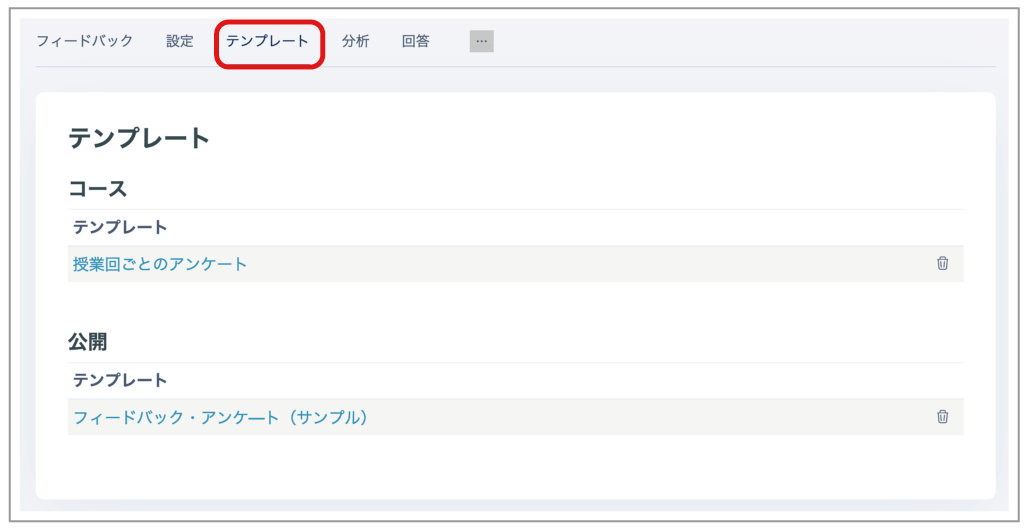
Using a template
Use a template displayed in the drop-down menu.
- Select the template you want to use.
- To delete questions already created, select "Delete old items"; to keep them, select "Append new items".
- Click "Save changes" to overwrite the existing template.
You can add more questions later.
Creating a template
After creating a Feedback activity, you can save it as a new template.
- After creating the Feedback activity, click "Save as new template".
- Enter a template name.
- Click "Save".
Select "Public" to make this template available throughout LMS/MORE.