This explains how to return, in bulk through LMS/MORE, files containing comments on Assignments collected on paper.
Create an Assignment for returning feedback
- Open the course in which you want to return the Assignment. In the section where you want to place it, click "Add an activity or resource" → "Assignment".
- Enter an "Assignment name". In the description, enter text such as "This Assignment is for feedback only. No submission is required." and select "Display description on course page".
- Under "Availability", clear "Enable" for "Allow submissions from" and "Due date". Then select "Enable" for "Cut-off date" and set it to a past date, such as the previous day.
- Click "Save and display".
Upload the files to return
- On the "View all submissions" page, click "Grade".

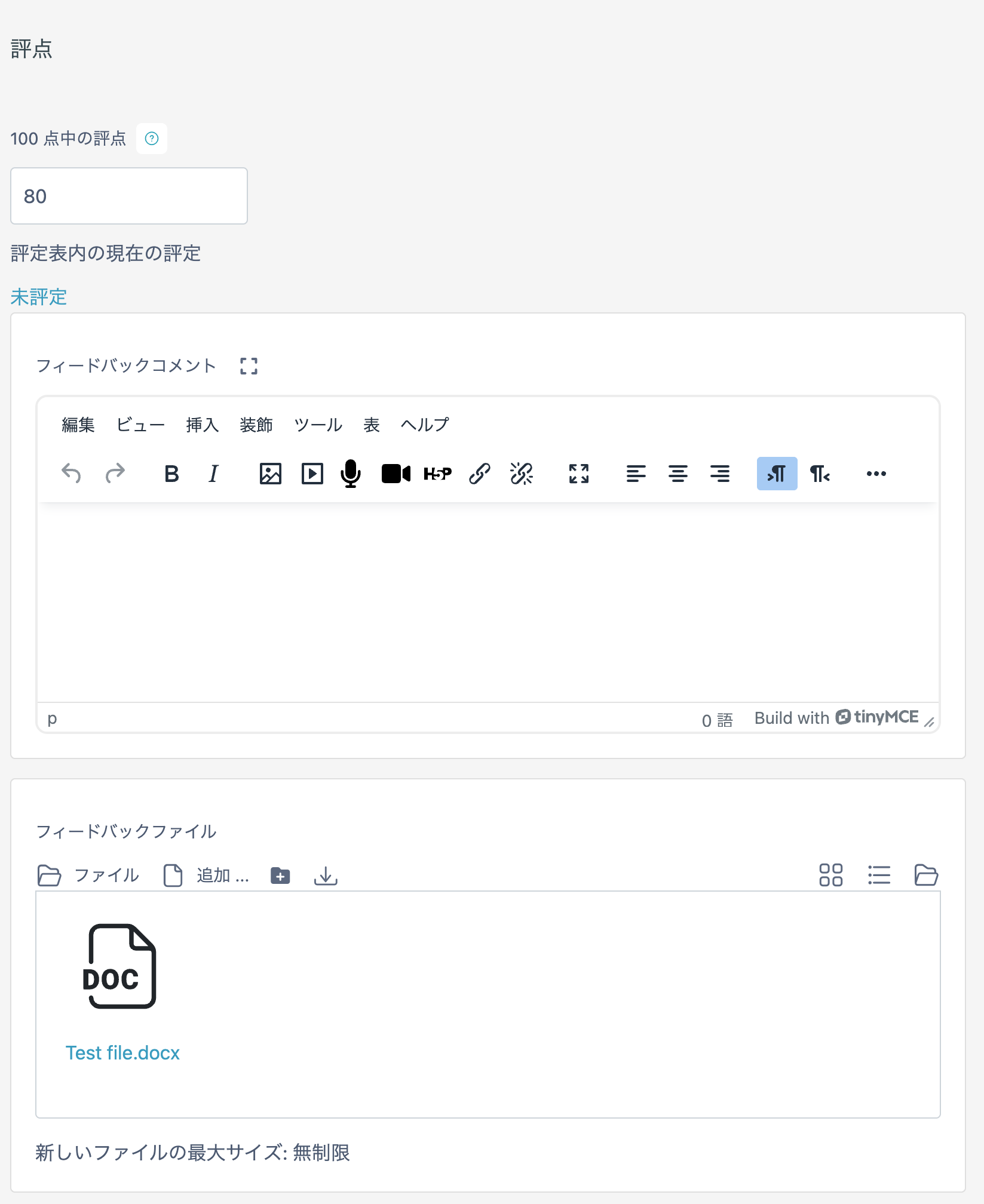
- Drag and drop the files to return into the "Feedback files" field to upload them. > To grade this Assignment as well, enter a score in "Grade" and save it.