
Users with permission only to watch videos, such as students enrolled in a course, cannot download Mediasite videos as files.
However, for videos that you manage, such as videos you uploaded yourself, you can use the Publish To Go feature to download a package from My Mediasite that includes an MP4 file.
Log in to My Mediasite, click the title of the presentation that you want to download, and then click "Edit Details" on the right.
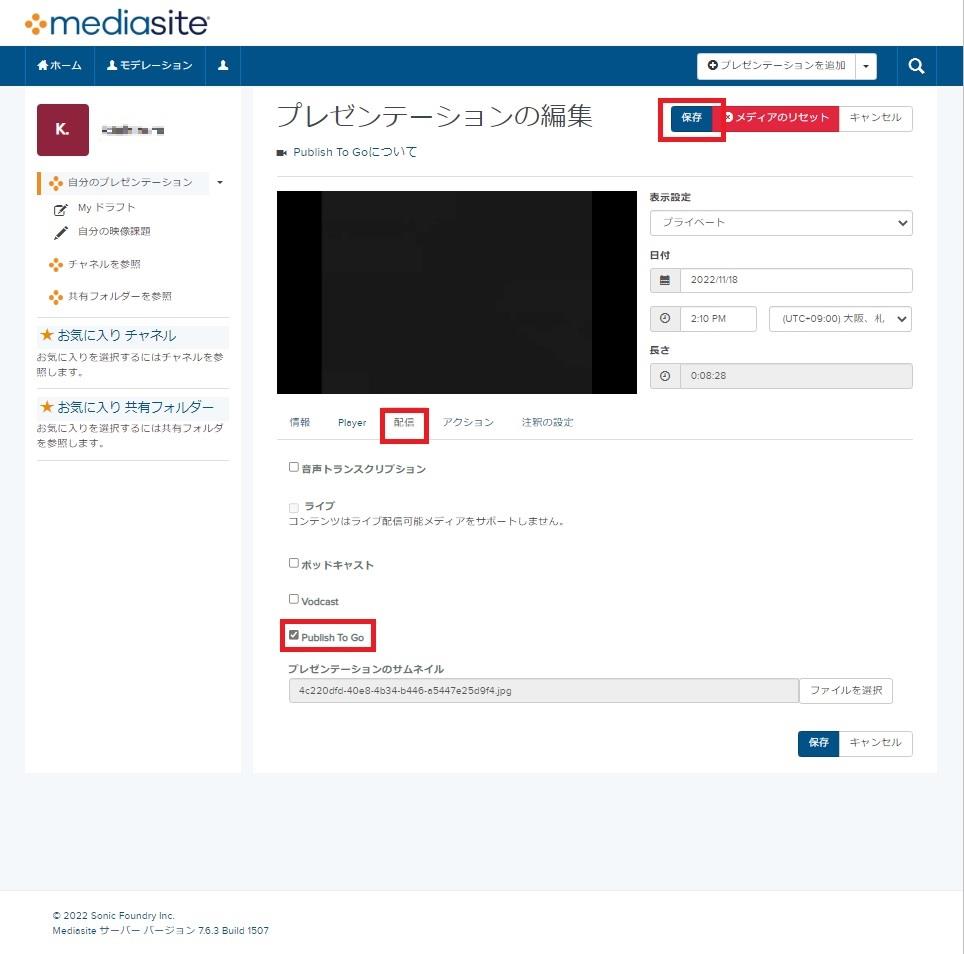
On the presentation editing screen, select the "Delivery" tab, select "Publish To Go", and click "Save" at the top right.
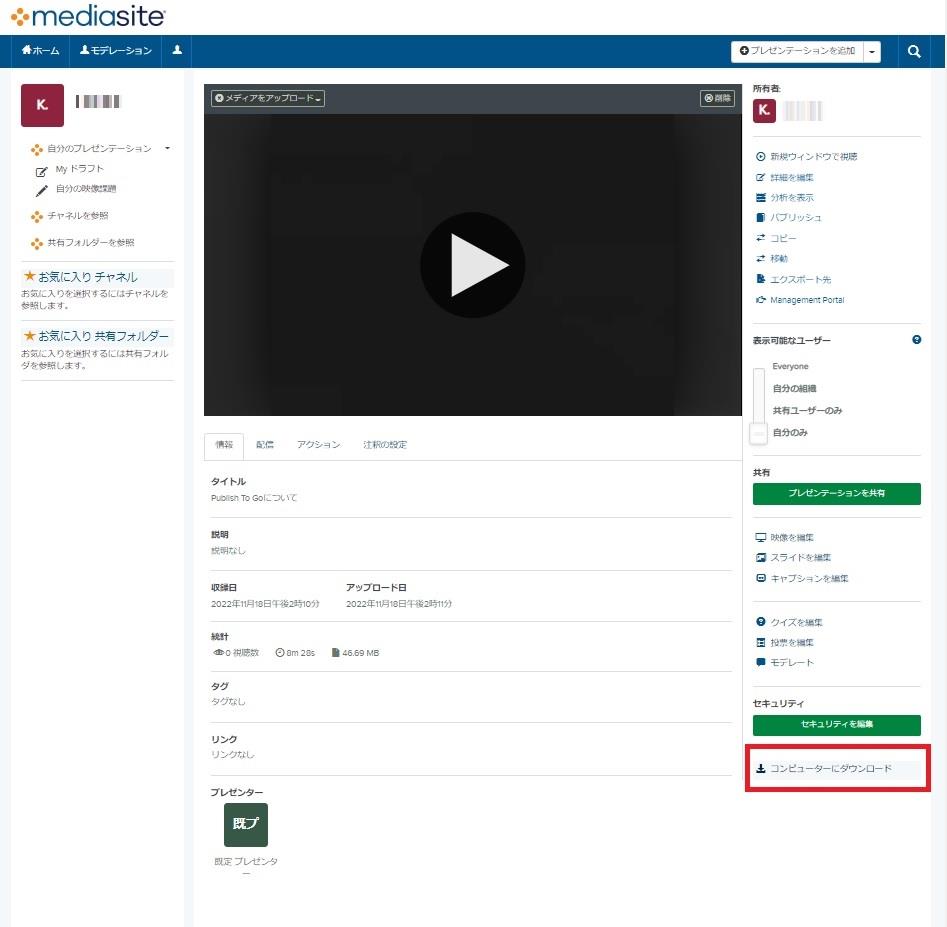
A "Download to computer" link will then appear at the bottom right of the presentation details screen. Click it.
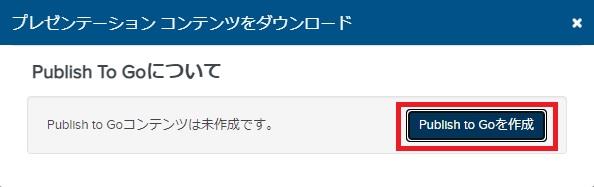
In the dialog that appears, click "Create Publish To Go". The message "Publish To Go is enabled. Please check again shortly." is displayed, but once background processing is complete, the button changes to "Download Publish To Go". Click it to download the ZIP file.
(Internal batch processing may take time depending on the video size.)
Extract the downloaded ZIP file and open Default.html in a browser to play the video in a screen similar to Mediasite.
The MP4 file itself is stored in the Content folder.