
To collect responses for each class or use your own questions separately from the university-wide Course Survey of Study Effectiveness, use the "Feedback" activity.
- From "Add an activity or resource", select and click "Feedback".
- Enter the Feedback name in "Name" (required).
Enter a description if needed. Select "Display description on course page" to show the description on the course page.
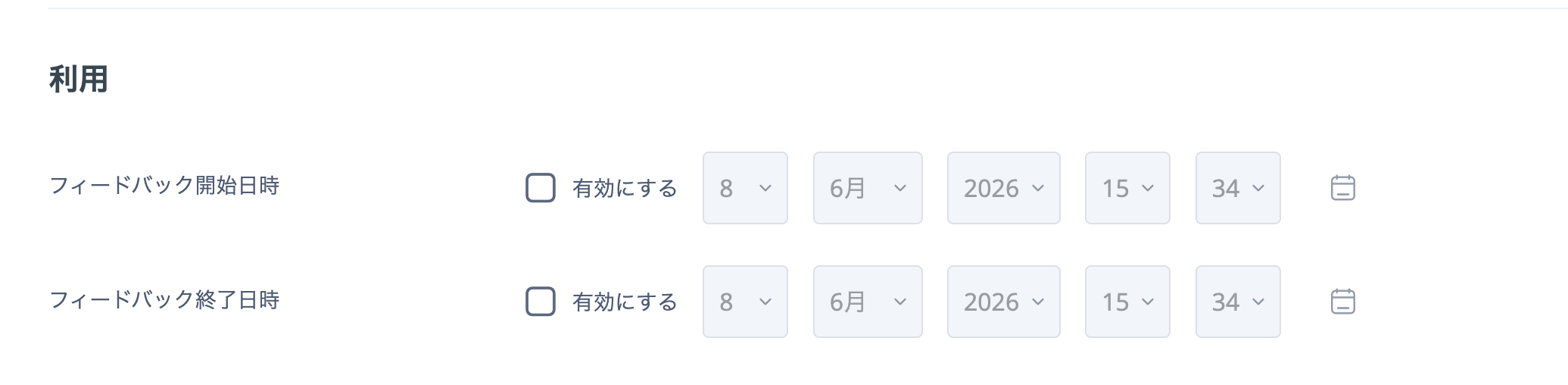
- Set the Feedback availability period under "Availability".
Select "Yes" to set the opening and closing dates and times.
Question and submission settings
- Configure responses in "Question and submission settings".
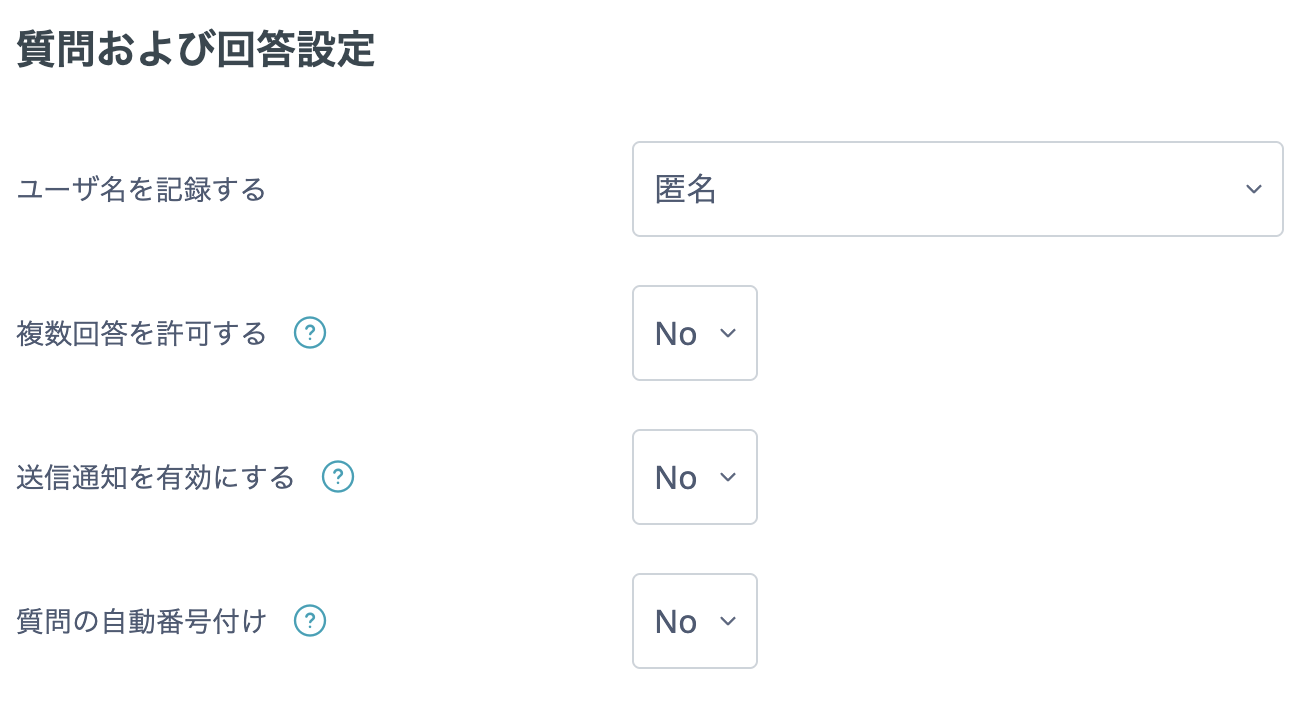
- Record user names: Choose whether responses are anonymous or user names are recorded.
- Allow multiple submissions: Configure the number of responses.
- For anonymous responses: when set to "Yes", every user can respond as many times as they wish. Each response is added; earlier responses are not overwritten.
- For named responses: when set to "Yes", a user's later response overwrites their earlier response.
- Enable notification of submissions: When set to "Yes", teachers receive a notification when a response is submitted.
- Auto number questions: Choose whether to number questions automatically.
After submission
Configure what students see after submitting their responses.
- Show analysis page: When set to "Yes", students can view the analysis results.
- Completion message: Enter a message to display after submission, if required.
- Link to next activity: Enter the link to another activity if you want students to move there after submitting the Feedback.
- Click "Save and display" at the bottom of the page.