
This explains how to show students only the scores from a paper-based test in LMS/MORE.
- In the menu, click the down arrow to the right of "Grades" → "Grader report".
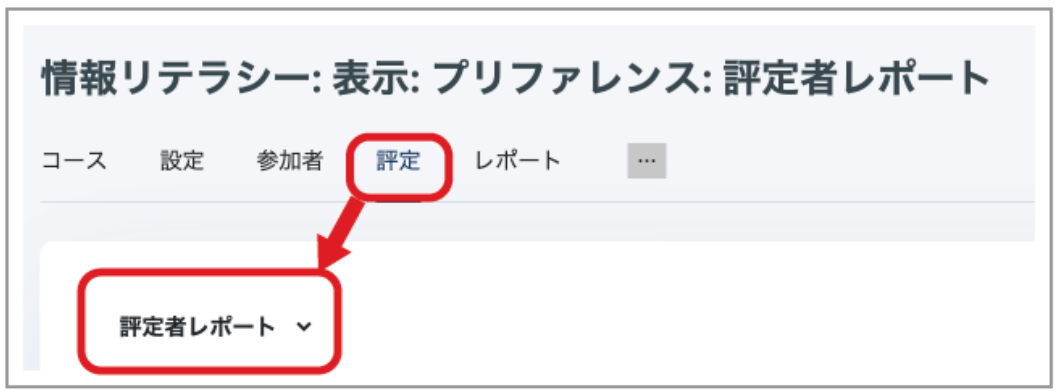
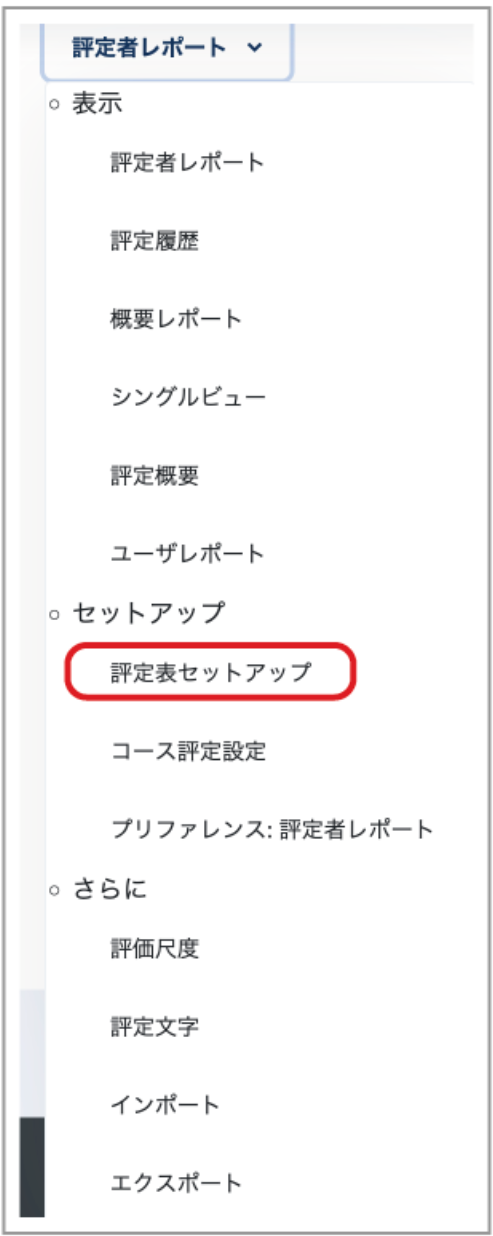
- From the expanded menu, select "Gradebook setup".
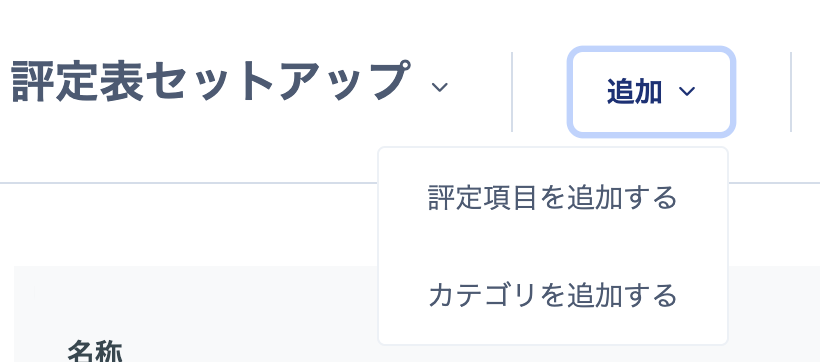
- Click "Add grade item".
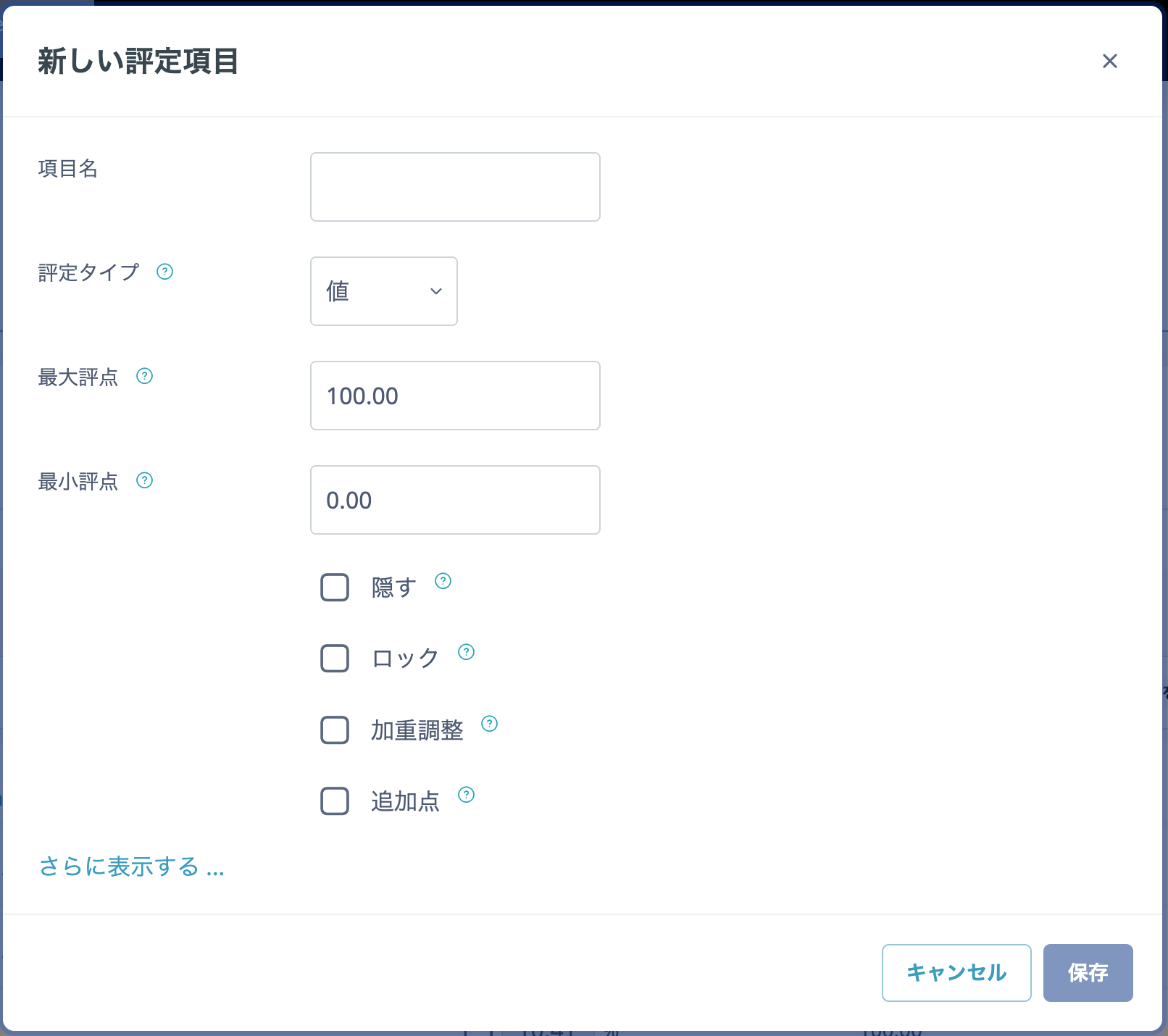
- Enter the name you want to add in the "Item name" field. Configure other items as needed, then click "Save changes".
- Slide the "Edit mode" switch at the top right until it is blue (ON). Click "Grades" in the menu, enter the scores for the relevant item, then click "Save changes".
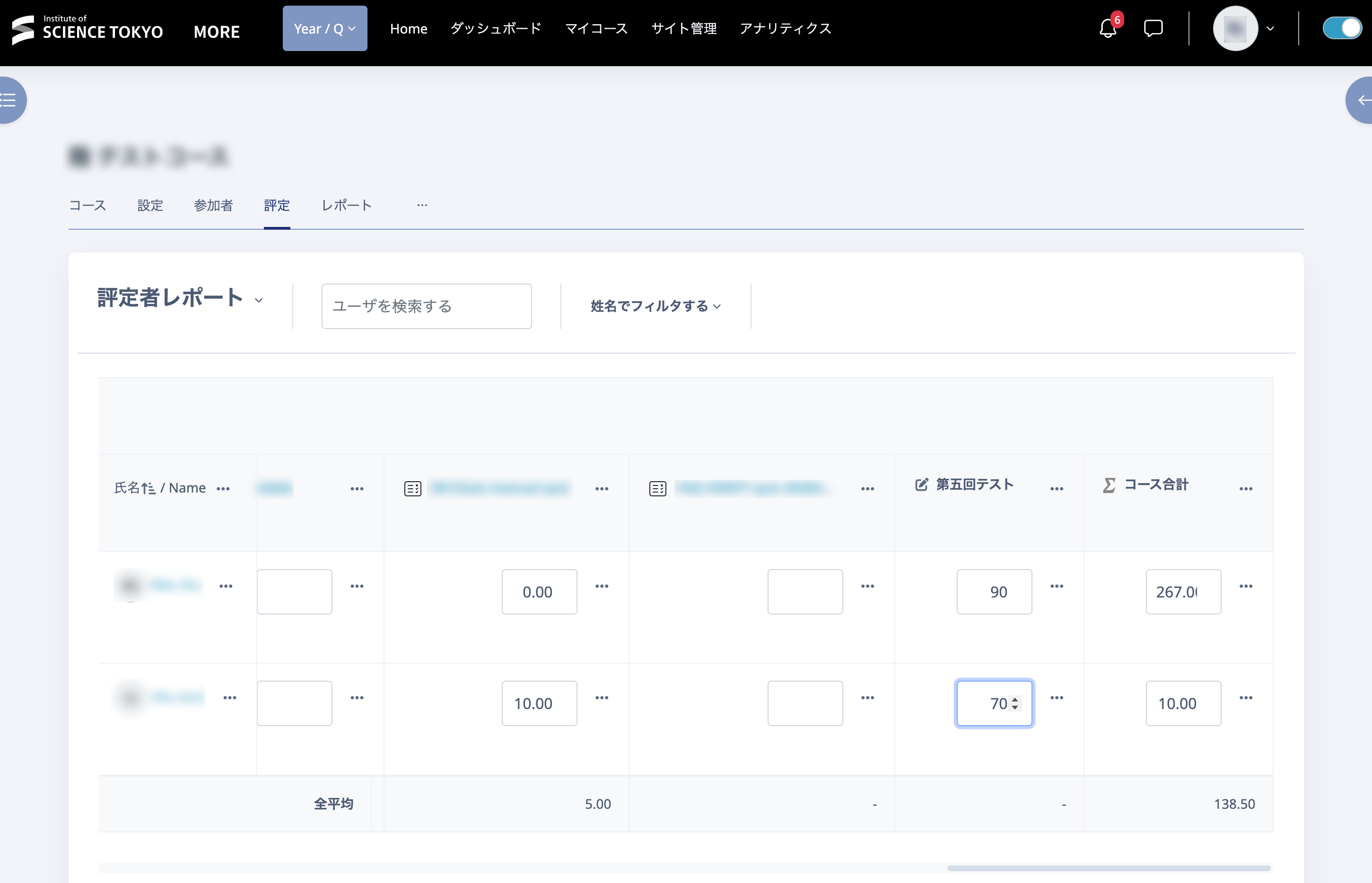
See Showing the Gradebook to Students to release the grades to students.
- "Grades" appears in the course menu, so students can check their paper test grades there.
Method without using the Gradebook (creating a placeholder Assignment)
If you do not want to release the Gradebook to students, you can create a placeholder Assignment.
Open the course in which you want to return the Assignment, then in the section where you want to place it, click "Add an activity or resource" → "Assignment".
Enter an "Assignment name". In the description, enter text such as "This Assignment is for feedback only. No submission is required." and select "Display description on course page".
Under "Availability", clear "Enable" for "Allow submissions from", "Due date", and "Cut-off date".
Click "Save and display".
See "Using a grading worksheet" in Batch Grading Assignments and upload a grading worksheet containing the grades.
Students can check their own grades from the relevant Assignment page.