Viewing and downloading Quiz results
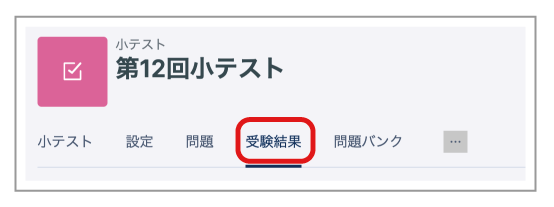
- Open the Quiz whose results you want to check, then click "Results".
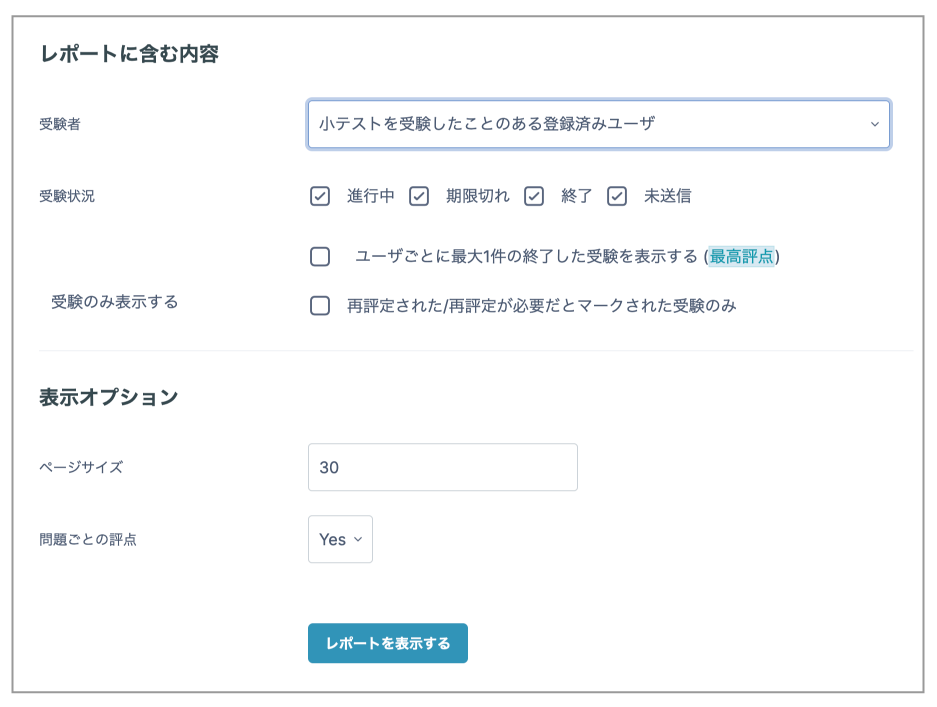
- A list is displayed at the bottom of the page. To filter the results, select the relevant option under "Attempts" at the top of the page, configure any other required options, then click "Show report".
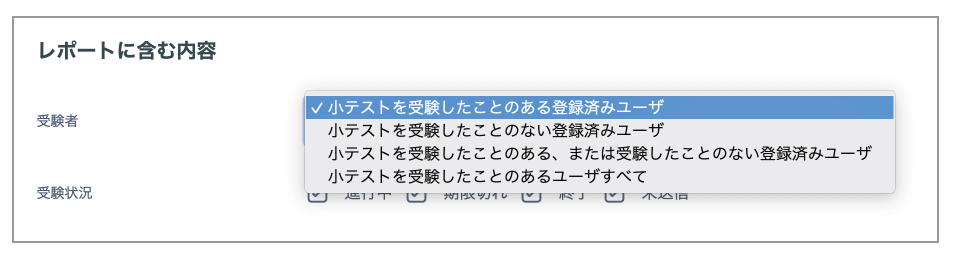
If you want to view a teacher's own test attempt made using "Switch role", select "All users who have attempted the quiz".
- You can select a format and download the list data.
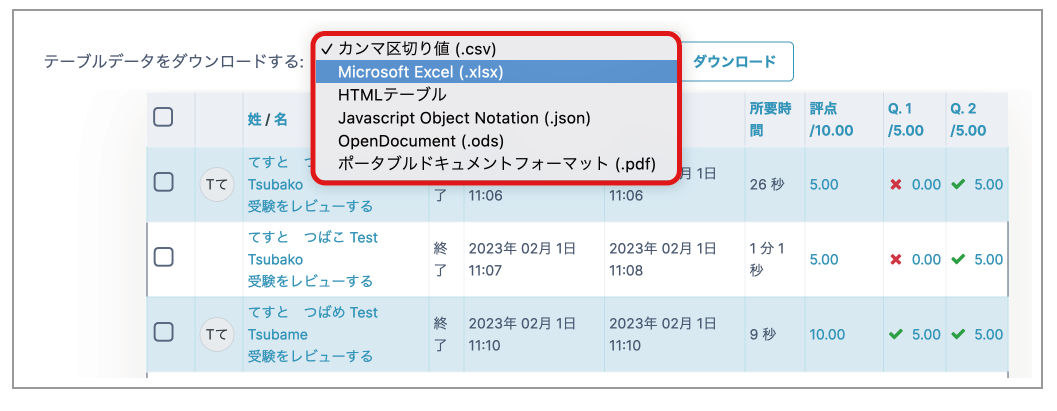
When "Attempts allowed" permits more than one attempt, the attempt used for grading is highlighted in light blue. (When the grading method is "Average grade", the graded attempt cannot be identified and is not highlighted.)
Grading Essay questions manually
Essay questions are not graded automatically and must be graded manually by a teacher.
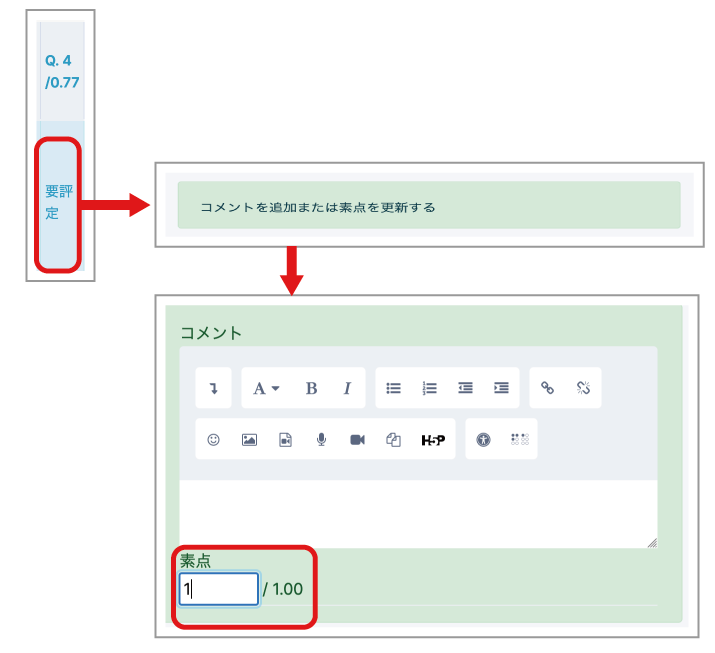
- Click an item marked "Requires grading".
- Click "Make comment or override grade".
- Enter the score in the mark field, then click "Save".