Entering Grades Without Releasing Them to Students
- Switch on "Edit mode" (slide the switch at the top right until it is blue [ON]), then click "Grades" in the menu on the left side of the course page.
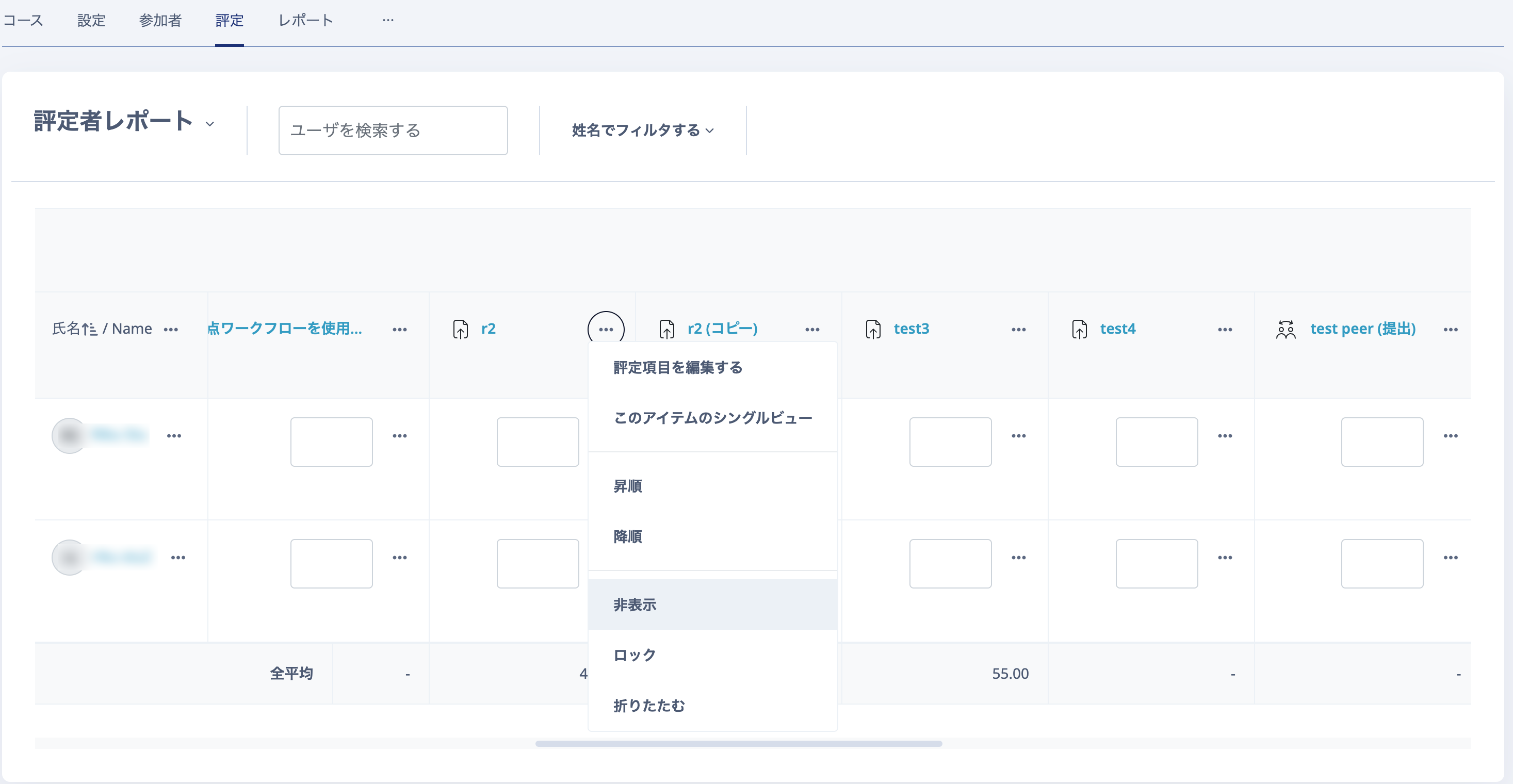
- In "Grader report", click "..." in the column for the relevant Assignment.
- Click "Hide", then click "Save changes" at the bottom of the page.
- Return to the course home page, click the relevant Assignment, and open "View all submissions".
- Click "Grade" and enter the score.
- After entering all grades, click "Grades" again in the menu on the left side of the course page.
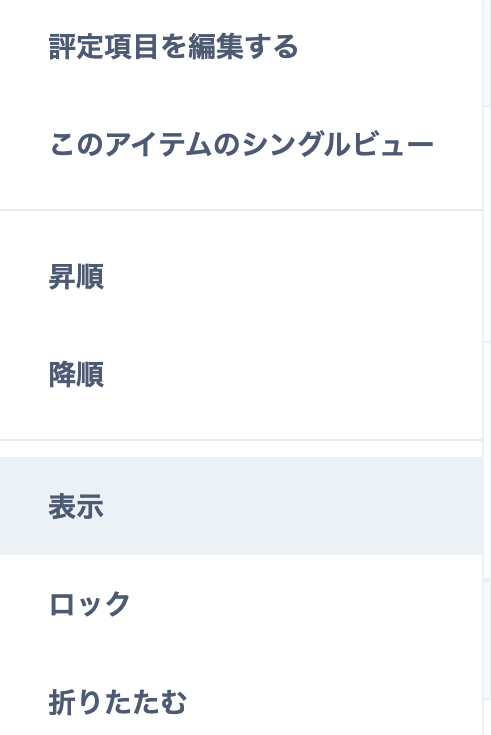
- Click "..." for the relevant Assignment, then click "Show" and "Save changes" at the bottom of the page to release the grades to students.